Crezco iplicitPay payment service
Crezco is an open banking payment solution that enables businesses to automate their payables e.g. Bill payments.
It allows seamless domestic bank-to-bank transfers.
Funds arrive in seconds and payments reconcile instantly within iplicit.
Crezco is designed to reduce processing fees and manual reconciliation.
Note
To view the legacy version, please select Legacy User Guide.
How to view Payment Services
Viewing Payment Services
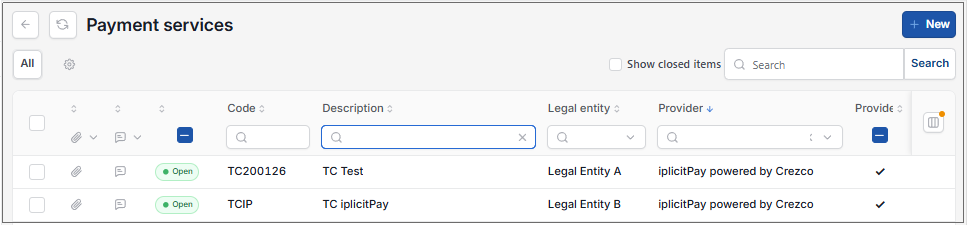
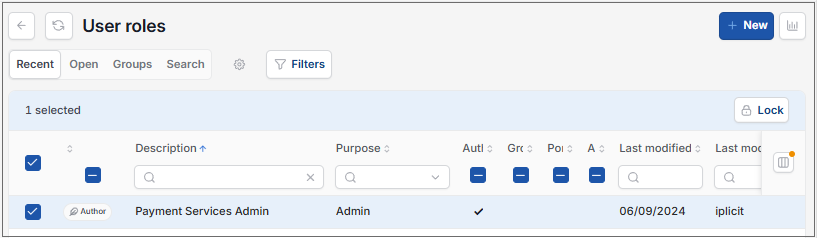
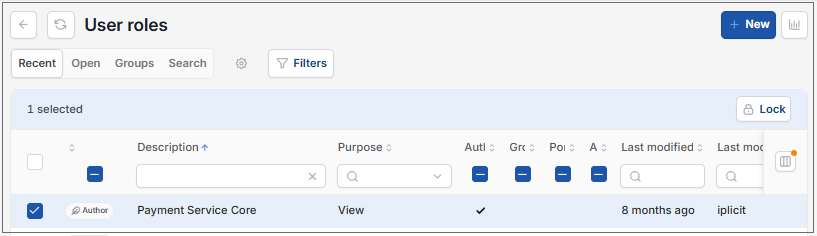
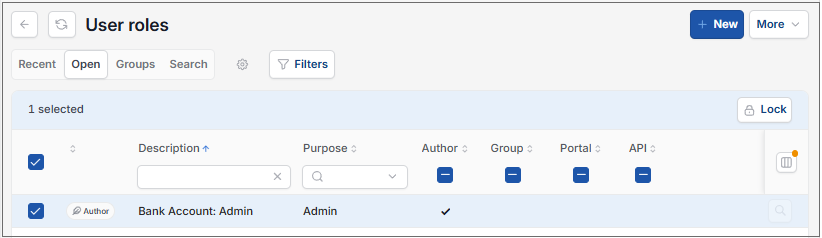
As per Generic Navigation options, either from left-hand navigation panel, expand Settings and select Payment Services from the Bank folder or enter Payment Services in the Search option.
This will then show the Banks on the system where normal customisation of Sets can be used.
Tip
To modify the columns displayed, select  option on the right of the column display, then tick/untick the information you want to hide or display.
Prerequisites
Prerequisites
To enable iplicitPay, please contact the Support Team via support@iplicit.com.
Check iplicitPay is supported by the Customer's Bank by checking Crezco's guide https://support.crezco.com/banks-that-support-making-payments. Their bank must support at least Single payment for it to work.
If their bank is not on the list then it will not be supported and they should request it be added via https://portal.productboard.com/im8z1zc4h859pqccq8mrwyyp.
Ensure that the Bank account to be used by iplicitPay has Payment Services option selected.
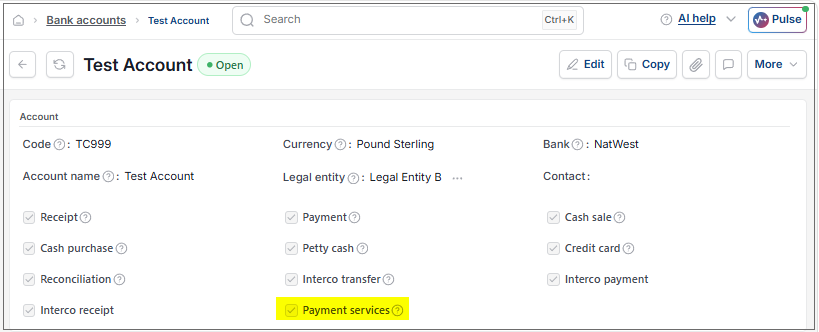
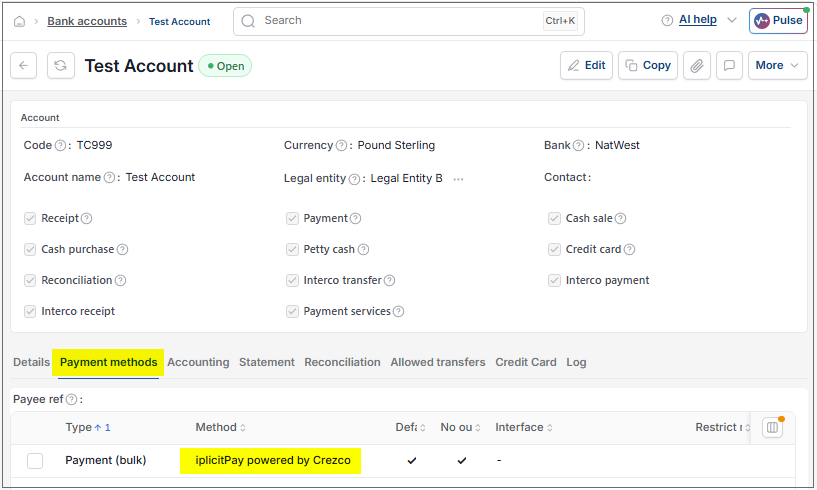
Once this Bank account has been added in the iplicitPay payment service as an iplicit bank (see setup below) then this will show on the Payment methods tab.
Note
It is not possible to add iplicitPay powered by Crezco as a Payment method on the bank account itself.
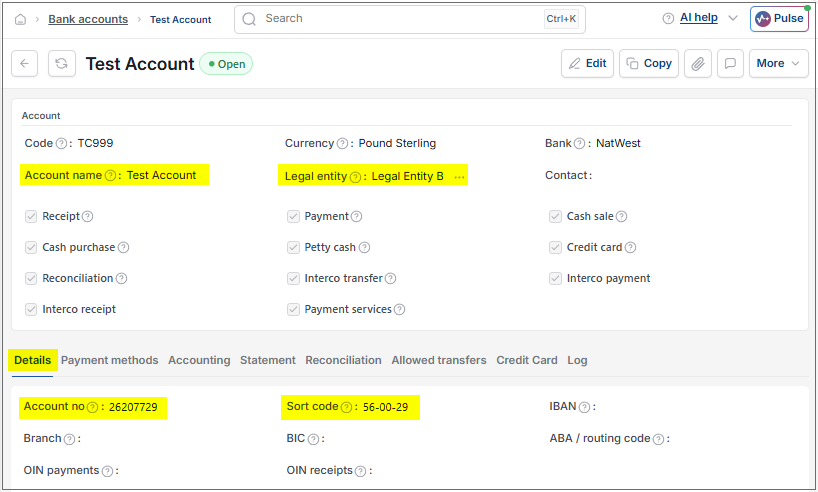
This Bank account will be linked to the Legal entity that will be used.
How to create a Crezco iplicitPay Payment Service
Creating a Crezco iplicitPay Payment Service
Select Payment services from one of the options as shown above in Viewing a Payment services.
Select New.
Fill in the appropriate data in the required fields.
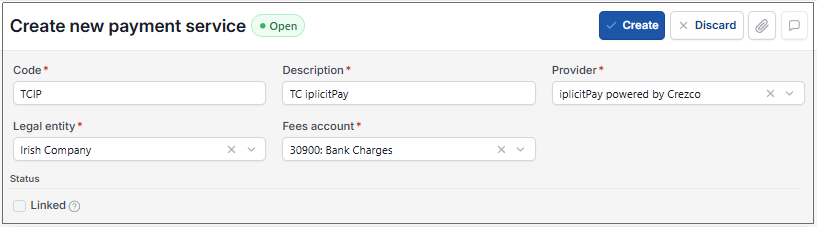
Code: Enter a unique code.
Description: Enter a description.
Provider: Select iplicitPay powered by Crezco from the dropdown list.
Legal entity: Select the Legal entity from the dropdown list.
Fees account: Select fees from the dropdown list - this option is only available for iplicitPay.
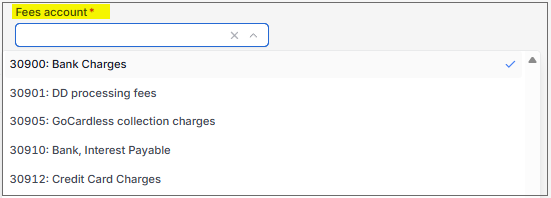
Select Create.
Until the new Payment service is securely linked to your Legal Entity, the Status will show the following.
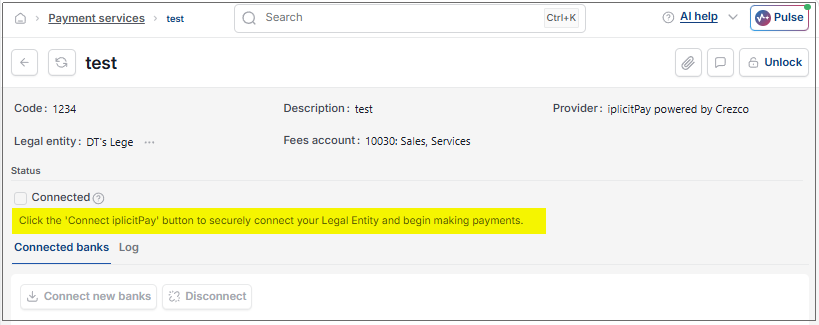
How to link a Payment Service to iplicitPay
Linking Payment Service
Once an iplicitPay Payment service has been created, this then needs to be linked to Crezco.
Select Payment services from one of the options as shown above in Viewing a Payment services.
Select the iplicitPay Payment service to "Link".
Select the Connect iplicitPay option that now displays in the top menu.
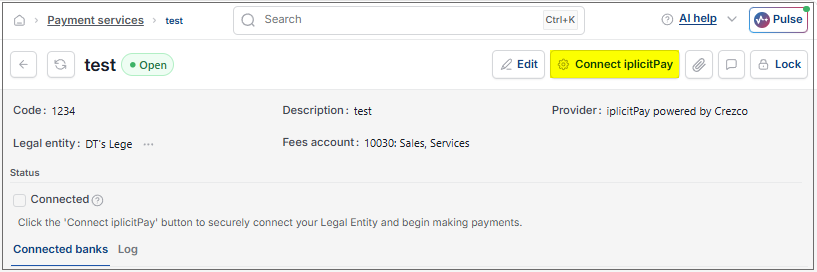
Enter First name, Surname and email address of the person within the organisation that will be responsible for the account and any communications from Crezco to accept the Terms and conditions.
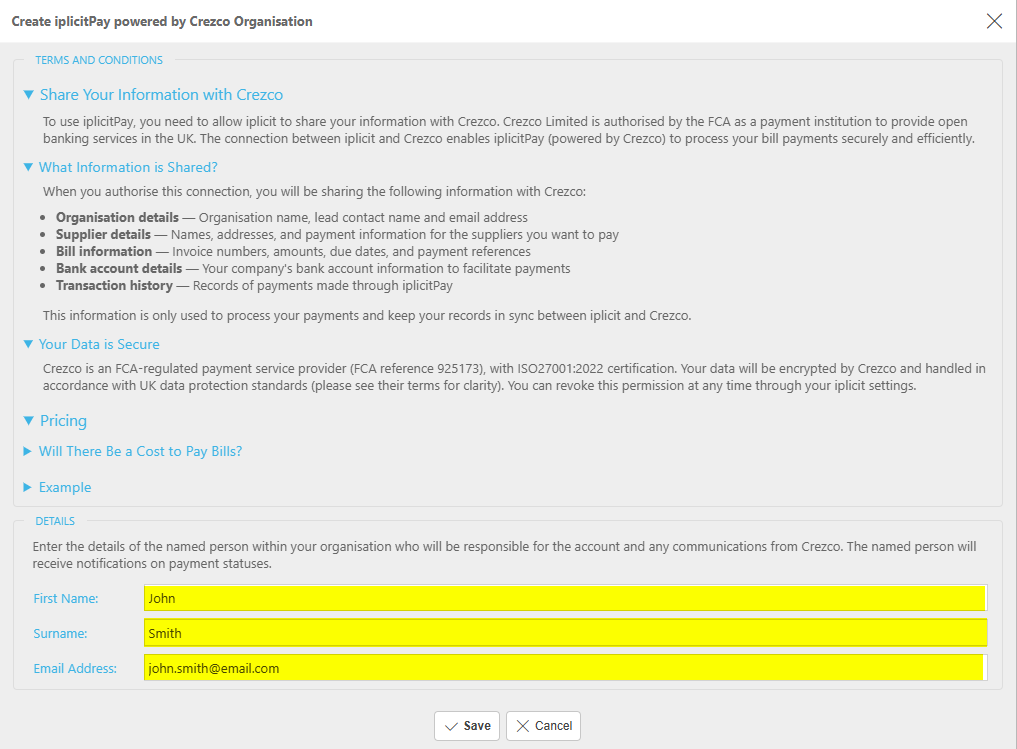
Then select Save.
The first screen will ask you to select a bank to connect to.
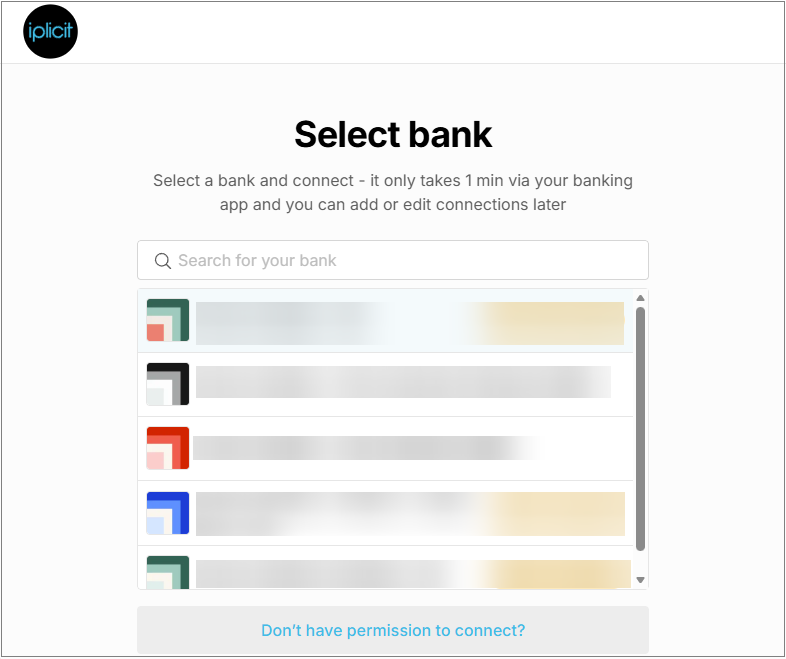
Note
Users would typically see something different to the above screen shots.
The initial list would be genuine bank accounts that they can select from e.g. Halifax, Nat West etc.
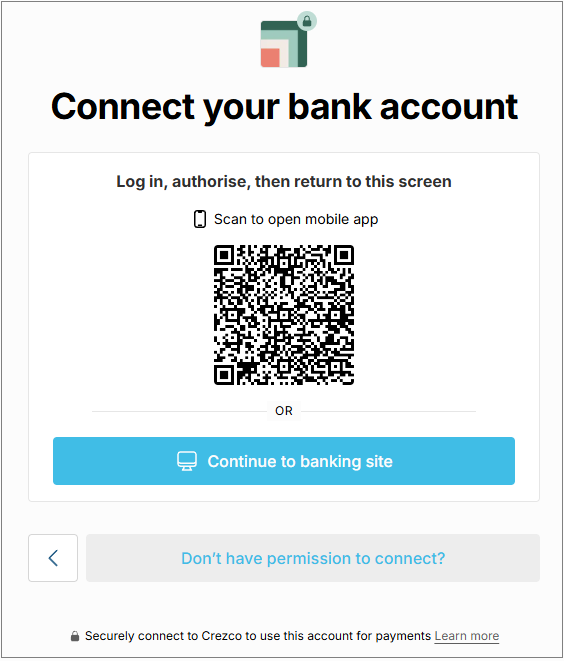
When they select their bank, it will redirect them to their online banking for them to authenticate.
Continue to the banking site.
Select Submit.
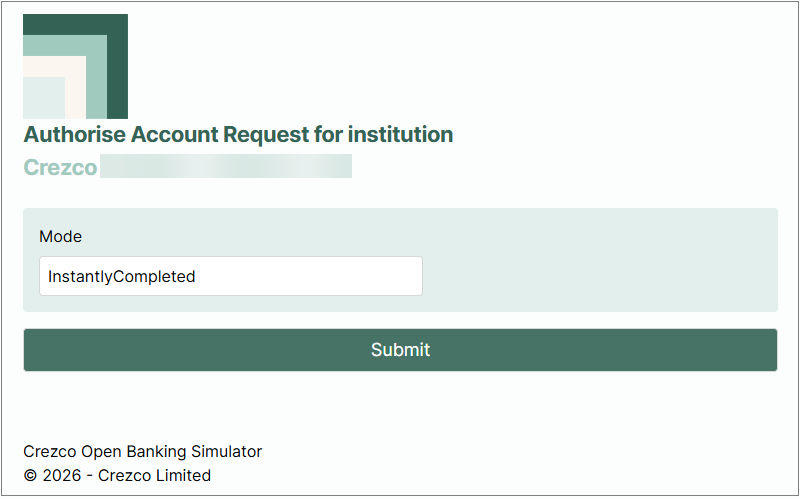
This will then process and show the banks that will be connected to the payment service.
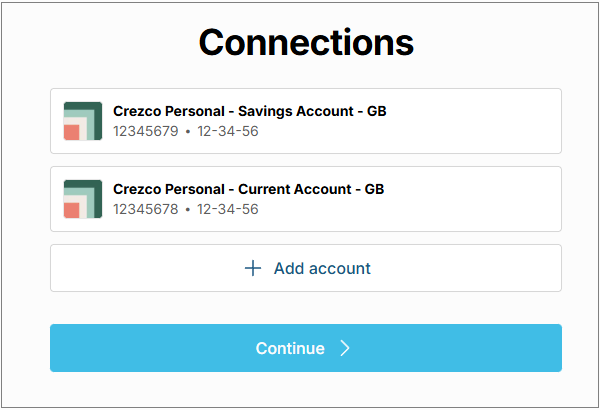
Once the process completes, you will get a confirmation message.
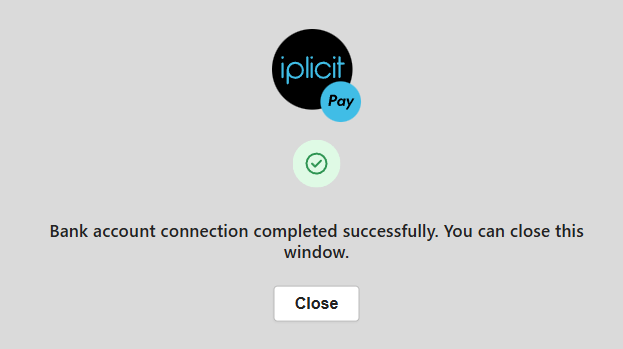
Return to the Payment services menu
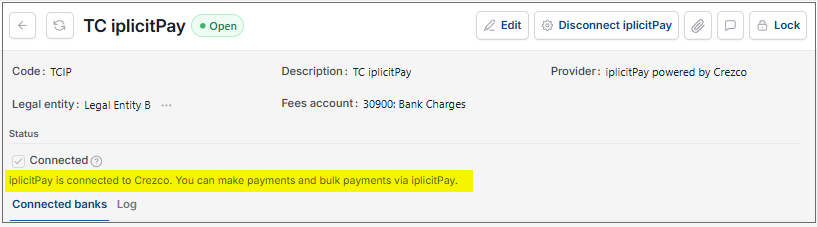
If the linking was successful, then your payment service will now have a status showing Connected - iplicit is connected to Crezco.
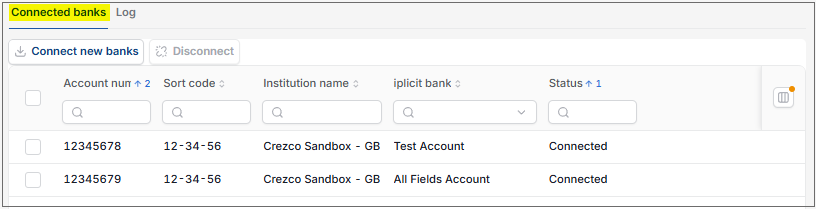
It will also show Crezco banks that are available to be connected to iplicitPay.
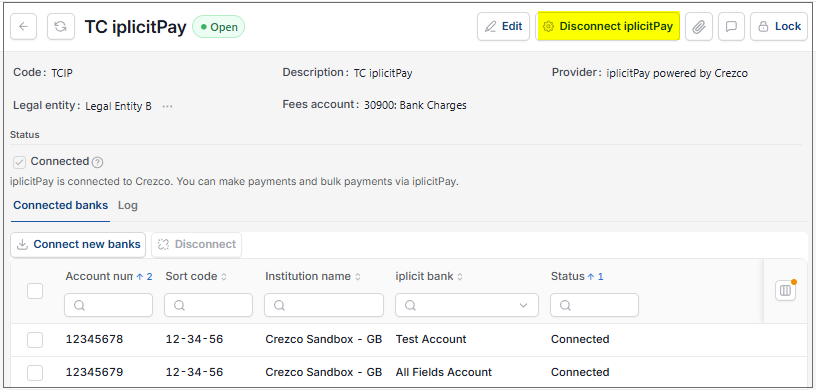
There will also be a Disconnect iplicit button in the top menu.
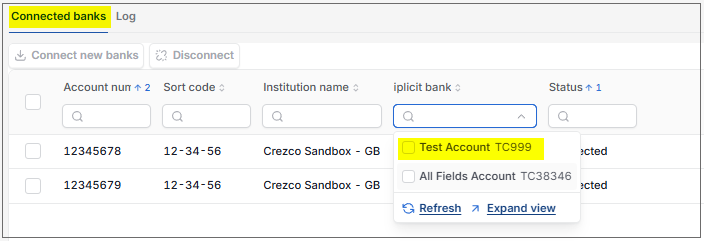
Allocate an iplicit bank to one of these connected banks.
Select Edit.
Connect an available iplicit Bank Account.
Note
See Prerequisites section above to confirm settings for the selected Bank Account.
Select Save.
iplicitPay powered by Crezco is now available on Bulk payments to pay Purchase invoices.
How to make payments using iplicitPay
Payments using iplicitPay
Select Bulk payments from one of the menu finder options.
Select New.
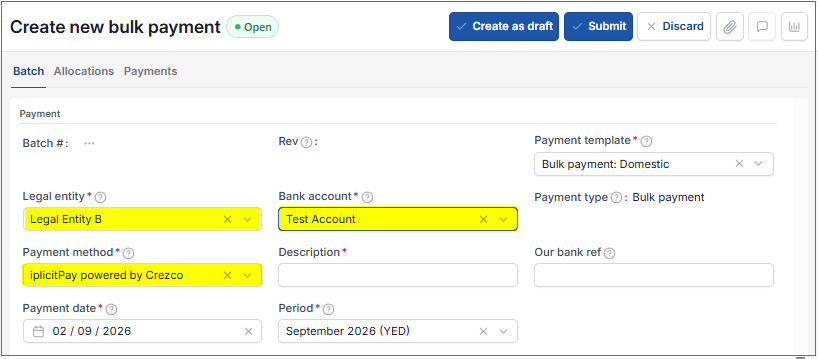
Legal Entity: Select the Legal entity used in the iplicitPay payment service.
Bank account: Select the Bank account set up for iplicitPay.
Description: Enter a unique description.
Payment method: This will be automatically filled from the Bank account setting.
On the Allocations tab, select the Purchase Invoices to add to this Bulk payment.
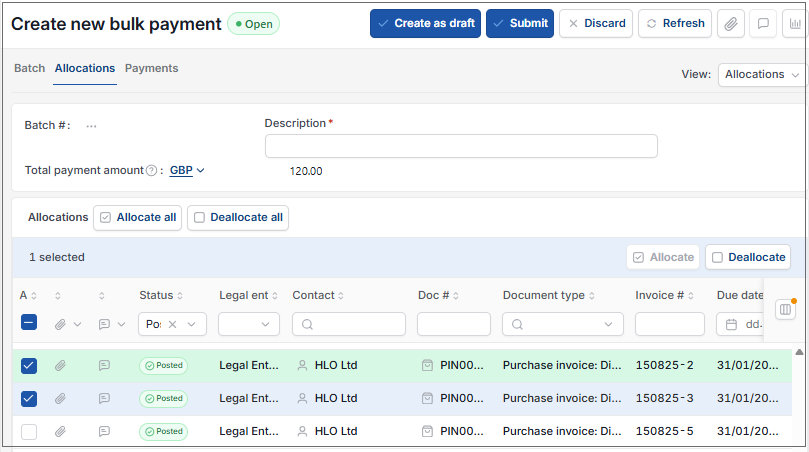
Select Submit - or Create as draft.
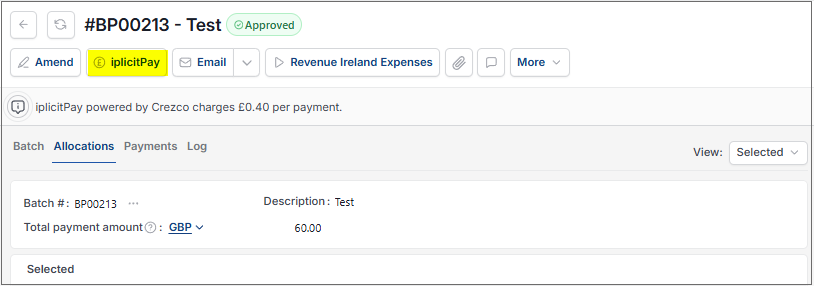
Select and open the new Bulk payment.
Note
A banner at the top of the page will show the Crezco fees that are due.
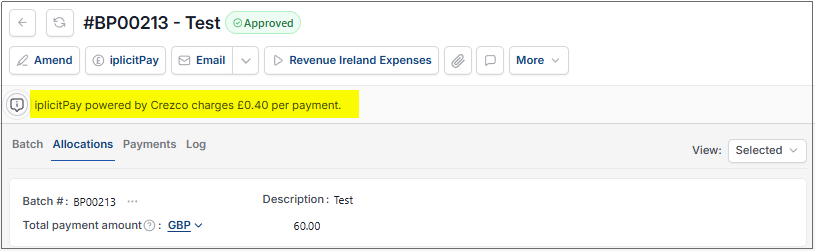
The Allocations tab shows the Invoices to be paid. The Payments tab will show the individual payments to the Supplier/s. If there are multiple allocations to the same Supplier, these will be grouped into one payment.
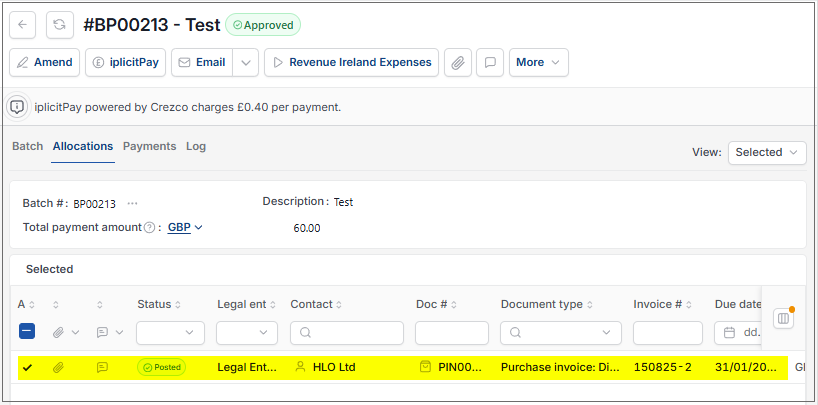
Select the
 option to take you into a Crezco flow. Select Proceed.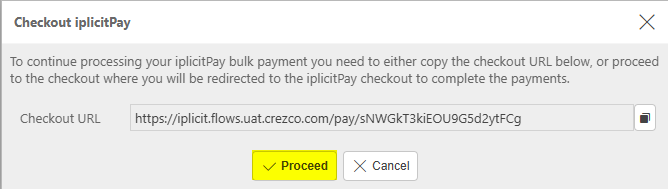
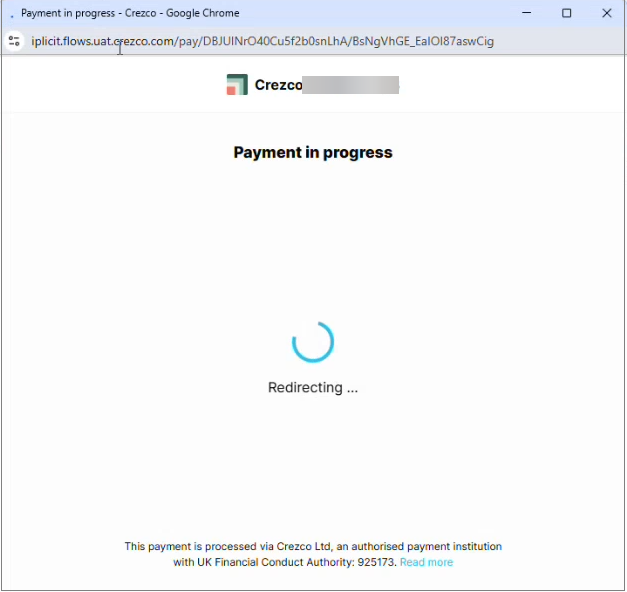
Once the process has completed there will be a payment authorisation successful message.
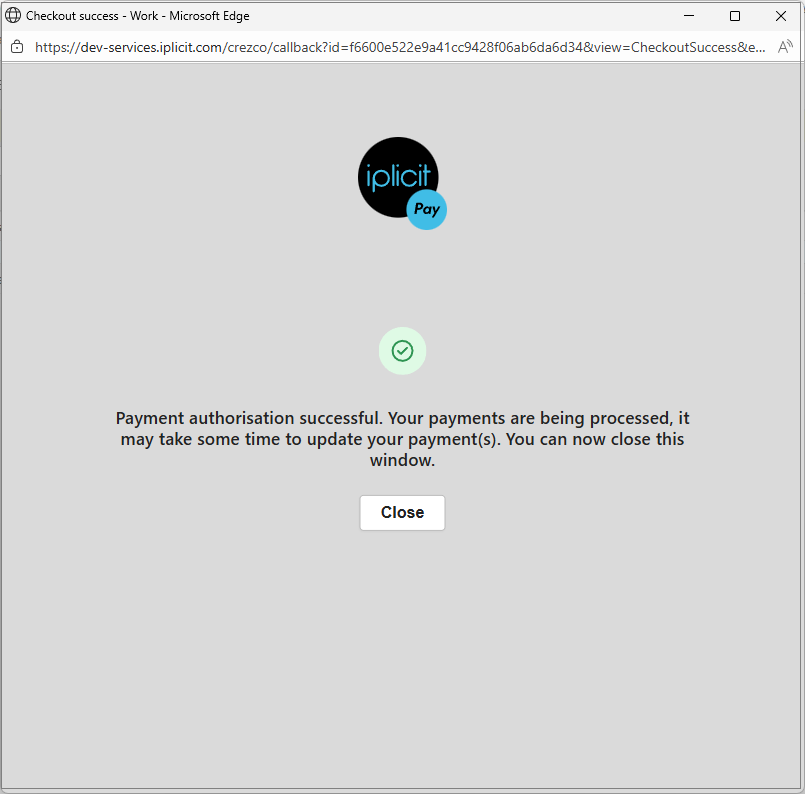
Select Close.
Once the payments have processed successfully the Bulk Payment will show as Posted.
Note
There is likely to be some delay as payments go through the banking system, then updates received from Crezco, and then statuses on iplicit are updated.
Ideally, the system will show the Bulk payment going to the Processing, then Processed states.
This payment will show on the Payment tab on the Bulk Payment.
And the Log tab will show the actions that happen during the process.
The payment will show on the Payments finder ...

... and the Purchase Invoices will show as Paid.
Note
If the Bulk payment date has elapsed and the Payments have still not been approved, then the dates will be updated to the actual payment date when the payment has been approved via Crezco.
So, the Bulk payment date will always be the date of the latest Payment.
If a Payment fails to process successfully (due to data error such as invalid bank details), then an error message shows.
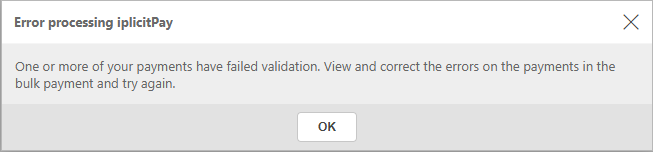
Check the Payment tab on the Bulk Payment to show details of the Error.
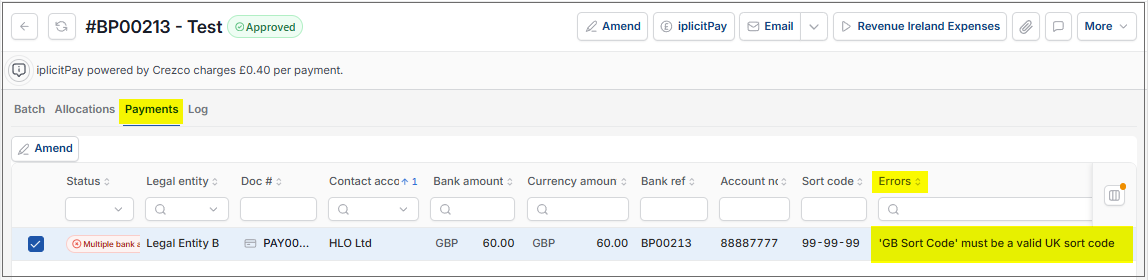
Correct the error - in this case Amend the Payment to correct the Sort Code.
Then try the process again by selecting the
option. If no errors, the payment should process as above and be successful.The Log tab on the Bulk payment will show the process history.
How to retry failed payments
Retry payments
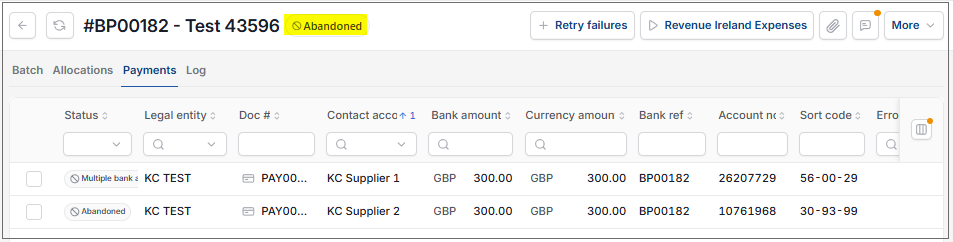
Where the Bulk payment has 2 or more payments and some process successfully and others fail, then the Bulk payment will return as Posted but with some Failures.
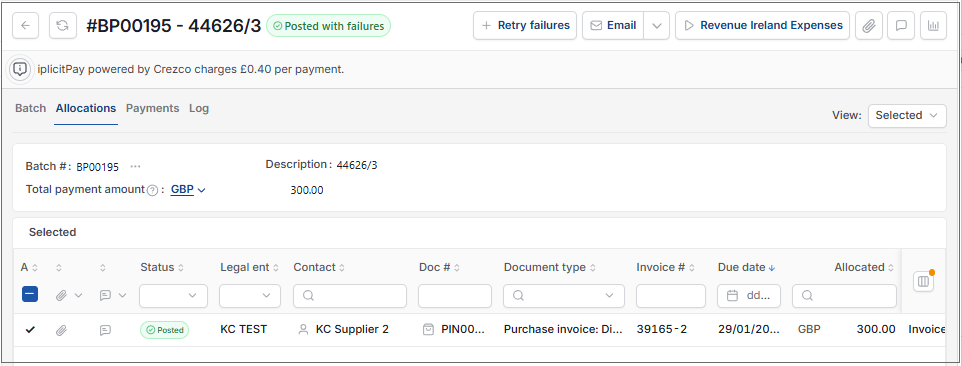
On the Bulk payment, select the
 option to create a new Bulk payment containing the failed payments only.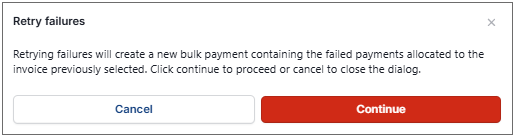
Selecting Continue creates the new Bulk payment with only the failed payments allocated automatically. All previous Bulk payment details will remain the same apart from the description.
Enter a new Description, then select Submit.
Select the
option to take you into a Crezco flow and follow the same iplicitPay process as before.
Updated September 2026