Credit Control
Summary
Credit Control is a system within iplicit that tracks -
Customers who are over their credit limit.
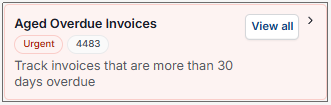
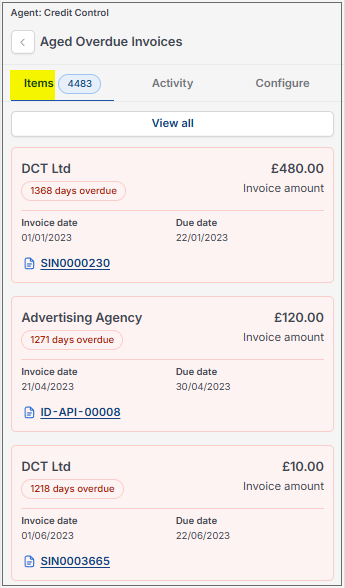
Invoices that are more than 30 days overdue.
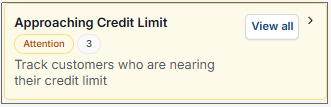
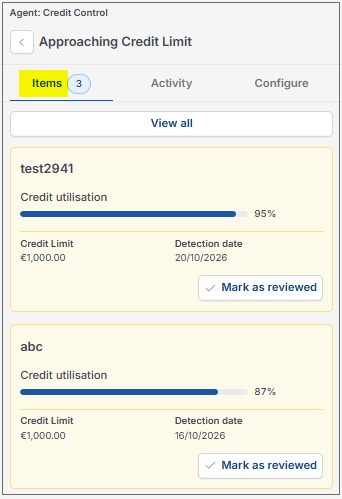
Customers that are nearing their credit limit.
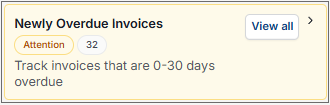
Invoices that are 0 to 30 days overdue.
Setting Prerequisites
Setting Prerequisites
In the User account, add the appropriate Credit Control to the Permissions.
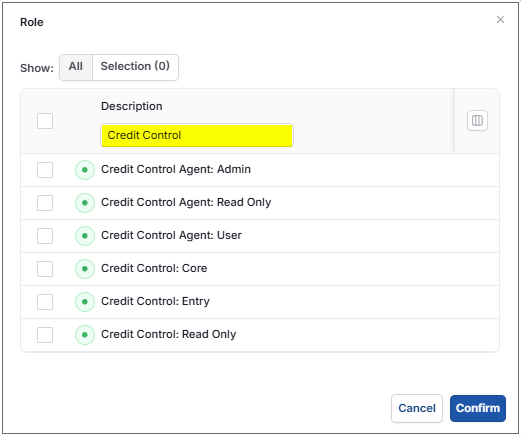
Credit Control Agent: Admin: Full control.
Credit Control Agent: Read only: Read only.
Credit Control Agent: User: Most control but cannot change any settings.
Credit Control: Core:
Credit Control: Entry: Entry only.
Credit Control: Read only: Read only.
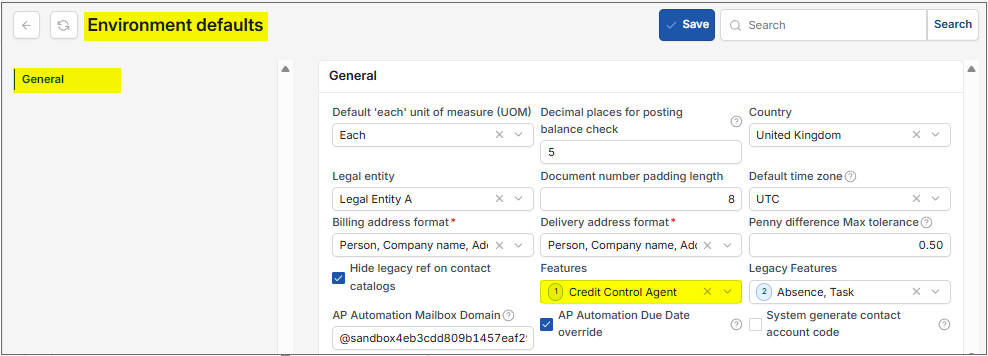
In the General section in Environment defaults, add Credit Control Agent to the Features option.
All Detection levels are set in the Customer record.
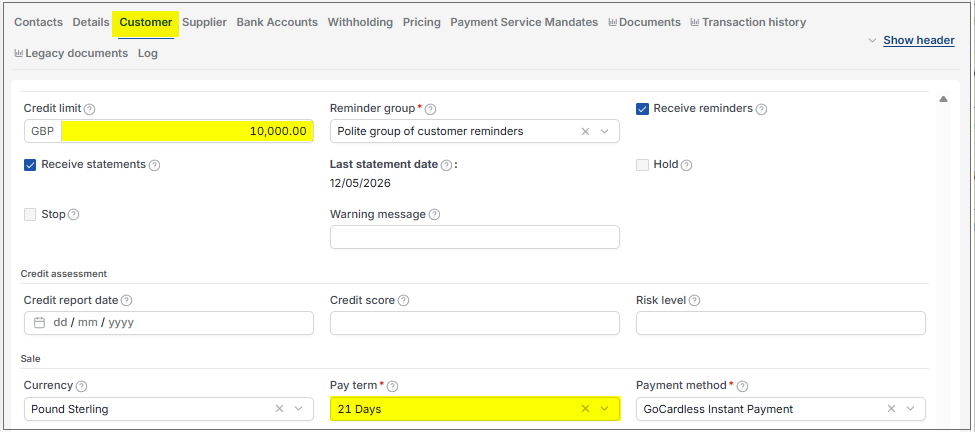
Credit Limit: This is the credit allowed for this Customer for all Sale Invoices.
Pay terms: Due date for Sale Invoices.
Credit control settings: Enter Credit control setting in the Search bar.
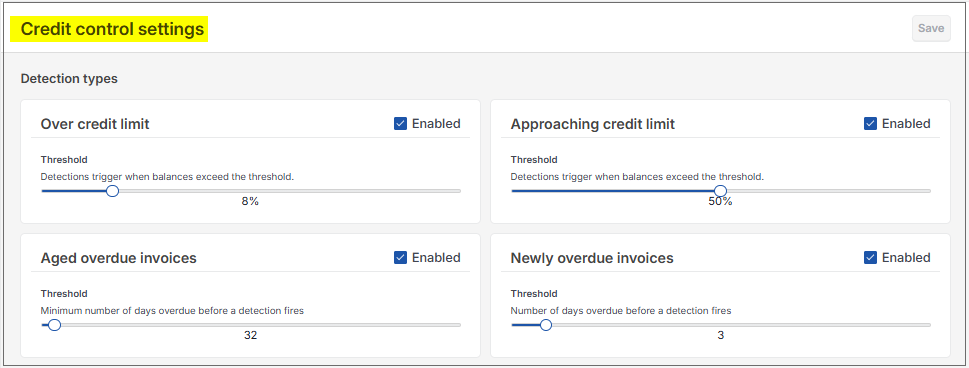
Select Enabled for the Detections required - if left unticked then the option will not show in the Pulse option.
Set the appropriate percentage or number of days required for each Detection.
For further details select Credit control settings.
How to view Credit Control Detections
Viewing Credit Control Detections
Either select the Pulse on the top right-hand corner of the screen or select the View in Pulse option on the right of the banner in the Credit Control screen.
Note
The Pulse option which will show a green notification dot if there are any Detections that are unread i.e. Created but not yet read.
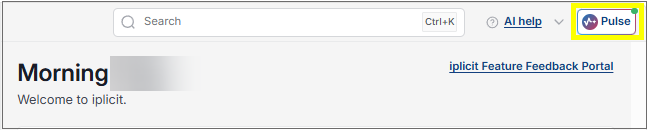
Selecting the Pulse option will open the Pulse panel and will show the number of Detections.
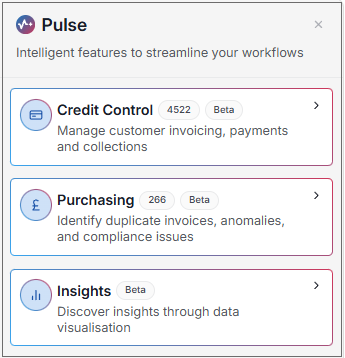
Select the Credit Control panel.
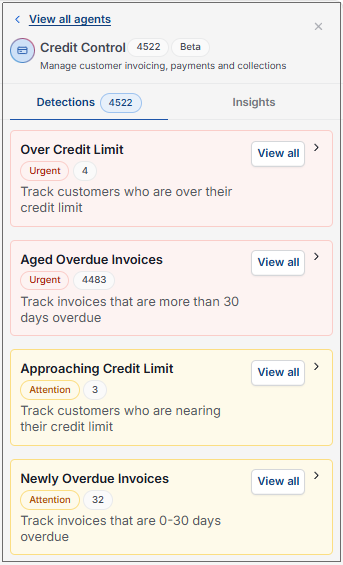
Note
The number of new Detections, if any, will be displayed as a number.
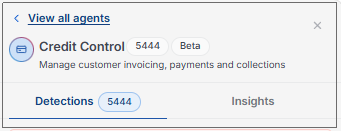
Select the  option to open the Credit control detections finder. See further details here.
Tip
This Credit control detections finder can also be opened by entering Credit control detections in the Search option.
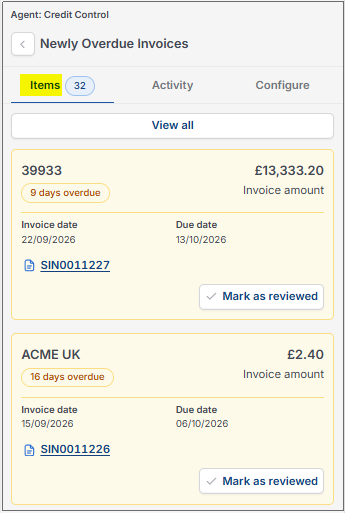
Each detection option has similar functionality -
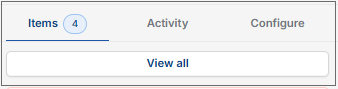
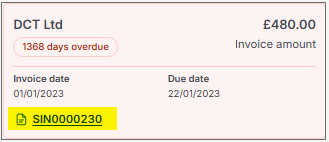
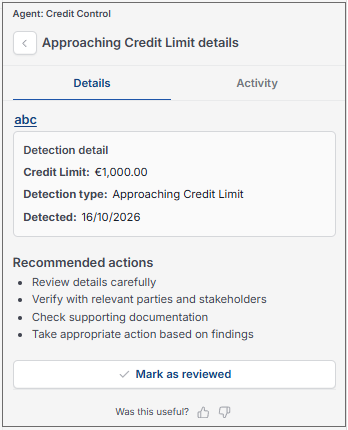
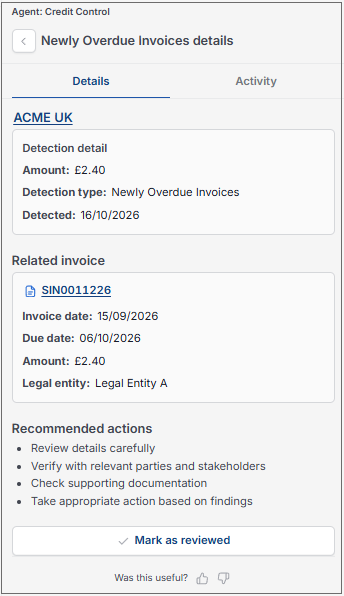
Depending on the detection view, selecting an individual item gives more information about the Customer or Invoice and any recommended actions.
See further details below on each detection option.
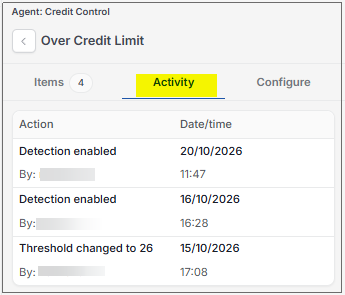
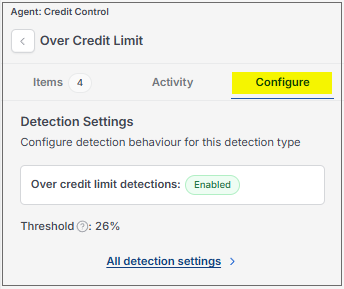
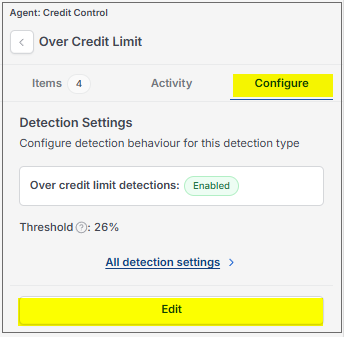
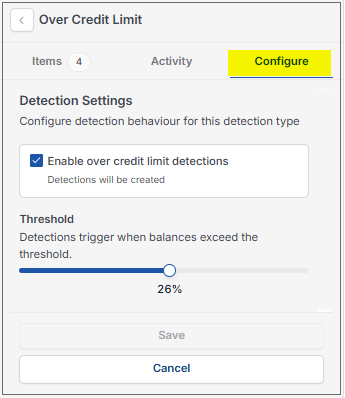
The different detections -
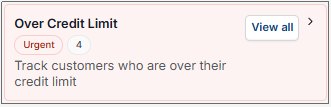
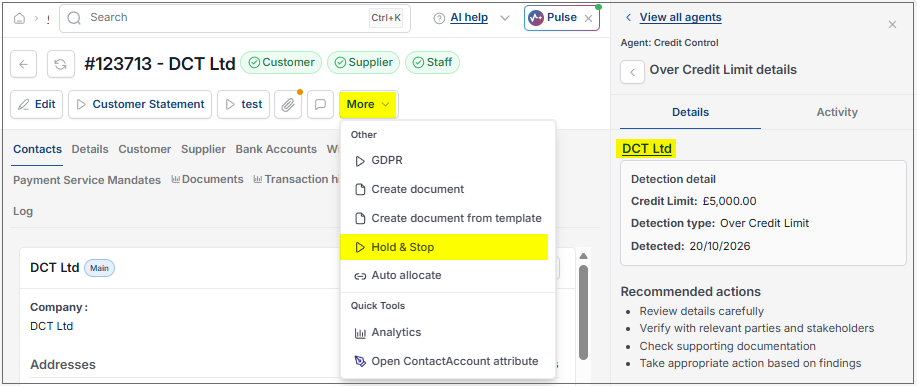
These items are based on Customer information and are marked as Urgent as they are over their credit limit.
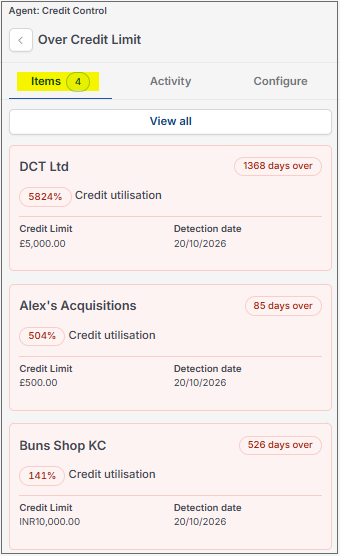
Selecting an individual Customer shows the credit limit and recommended actions.
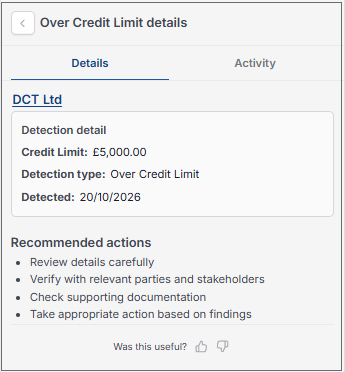
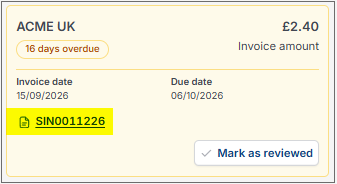
For a Customer with a seriously overdue account, the User can select and open the Customer and place on STOP to prevent further credit.
Once the Customer file is open, select Hold & Stop from the
 option.

 option.
How to view Credit Control Insights
Viewing Credit Control Insights
This will show an overview of Accounts receivables.
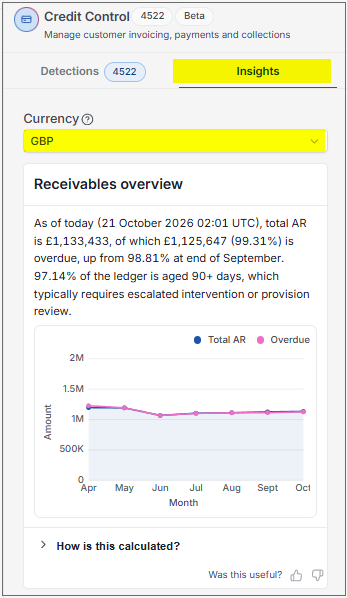
Currency: Option to select currency.
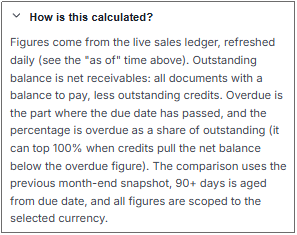
Section explaining how this is calculated.
Updated October 2026