Accrual Automation
Accrual automations can be run in the automation finder.
An accrual is a recognition of money that will be owed in the future and what it will be spent on.
There are three types available:
- approved Purchase orders which are not matched to an approved GRN or a posted Purchase Invoice.
- approved GRN which are not matched to a Purchase Invoice.
- Draft Purchase Invoices which are not yet posted to the GL.
The process for running each type is the same.
Note
To view the legacy version, please select Legacy User Guide.
How to view Accrual Automation
Viewing Accrual Automation
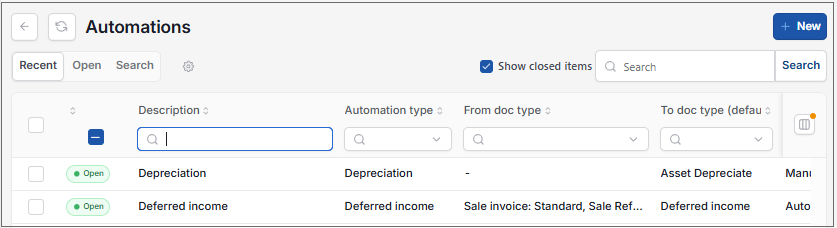
As per Generic Navigation options, either from left-hand navigation panel, expand Settings and select Automations from the Document folder or enter Automations in the Search option.
This will then show the Automations on the system where normal customisation of Sets can be used.
Tip
To modify the columns displayed, select  option on the right of the column display, then tick/untick the information you want to hide or display.
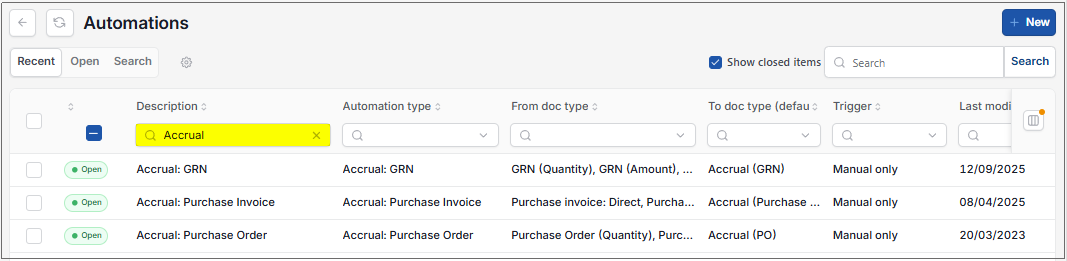
Select Accruals from the list of Automations.
Note
The 3 Accrual Automations in the following example are NOT automatically available, and, if not, will need to be created using Automations.
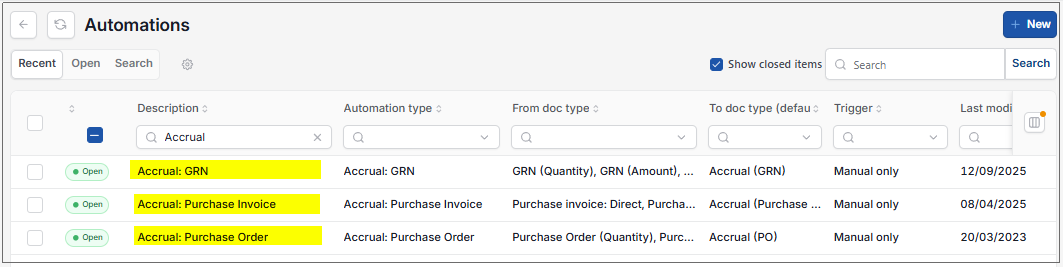
Although there are three types of Accrual, you may not need or wish to create Accruals for each type, so you choose which one(s) you wish to use.
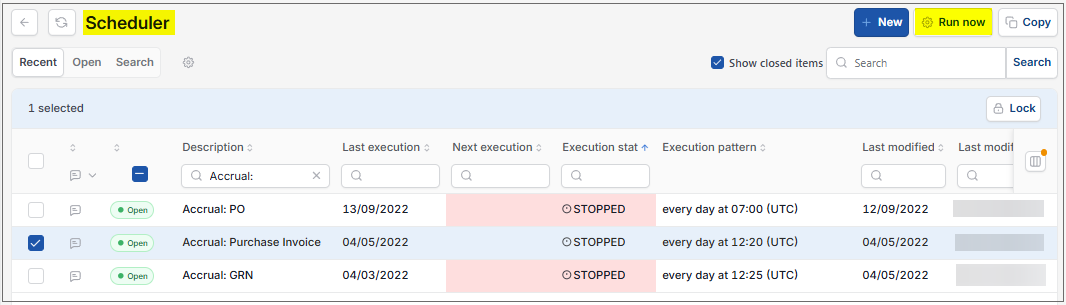
The Accrual automation are run either manually from the Automation (select Accrual using tickbox or select and open)-
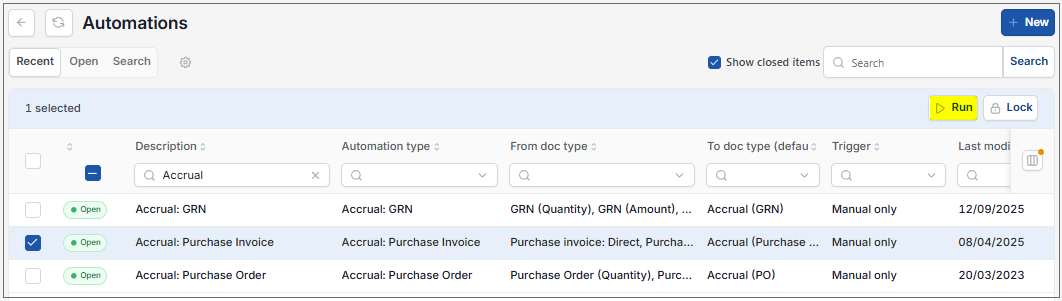
or they can be Scheduled to run automatically (e.g. at 7am every day) via the Scheduler.
How to run Accrual Automation
How to run accrual automation
Select Accrual automations from Viewing Accrual automation above.
Select, or select and open, the Accrual automation, then select Run.
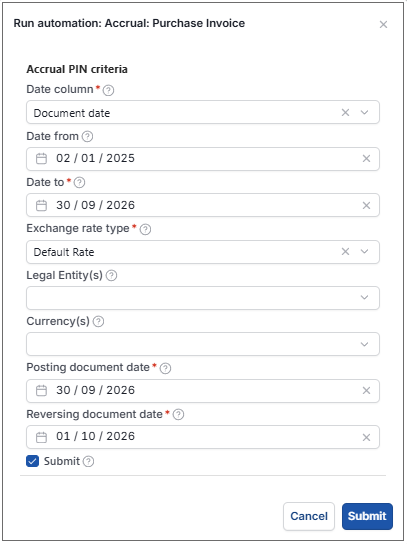
Enter the automation criteria.
Note
The parameters are identical for the Purchase Order and draft Purchase invoice accruals.
Date column: Select the date column that you wish to use in conjunction with date from/to.
Date from: Leave this date blank if you want to select all available documents or enter a date to restrict documents to be greater than or equal to this date.
Date to: The date to will default but alternatively you can select the latest document date that you wish to include for your accruals.
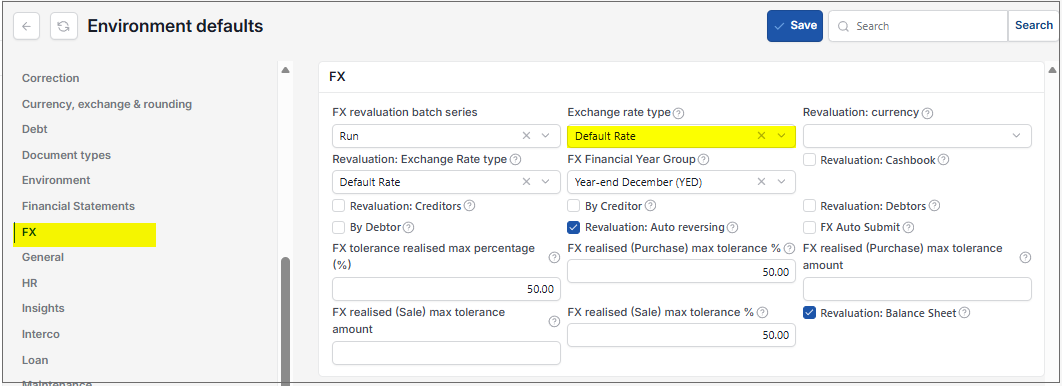
Exchange rate type: Select the exchange rate to be used for foreign currency document.
Legal Entities: Leave parameter blank to select all Legal Entities OR select Legal Entity(s) to restrict the accruals created.
Currency: Leave parameter blank to select all OR select Currency(s) to restrict the accruals created.
Posting document date: This date will default and will define the date for the accrual document(s) created. Manually enter a date if appropriate.
Reversing document date: This date will default and will define the date for the accrual reversing document(s) created. Manually enter a date if appropriate.
Tip
The reversing date must be after the posting date.
Submit: If this checkbox is ticked, the accruals and associated reversing documents will be automatically submitted for authorisation. If unticked, the documents will be created in a 'draft' state.
Select Submit.
Select OK to continue working. Automation progress will show on the bottom left of the screen showing either In progress or Complete - see details in step 5 of How to run Automations.
Updated September 2026