Reminder Groups
Only Users with access to the Debt admin role will be able to add Reminder groups.
There are some pre-configured Reminder groups, which can be Edited or Locked.
Users can create their own Reminder groups for differing Customers, and can add different levels of reminders.
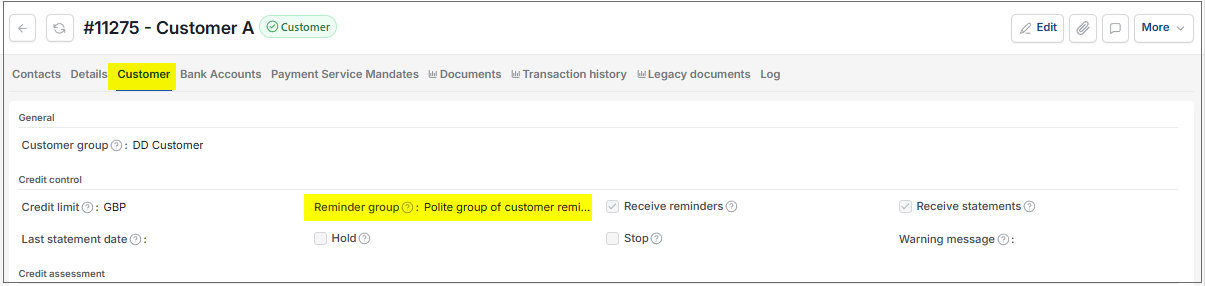
The Reminder group is selected on the Customer setup. It will identity the reminder letters which can be sent to the Customer for overdue Sale Invoices.
Note
To view the legacy version, please select Legacy User Guide.
How to view Reminder Groups
Viewing Reminder Groups
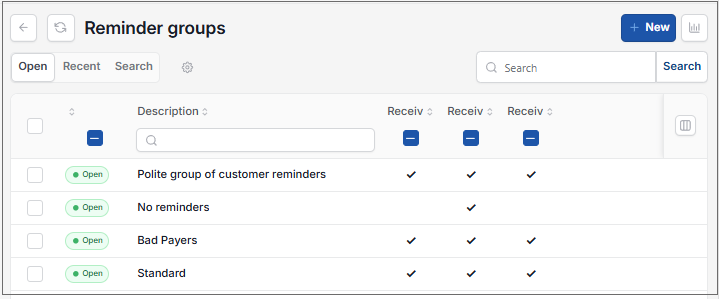
As per Generic Navigation options, either from left-hand navigation panel, expand Settings and select Reminder groups from the Debt folder or enter Reminder groups in the Search option.
This will then show the Reminder groups on the system where normal customisation of Sets can be used.
Tip
To modify the columns displayed, select  option on the right of the column display, then tick/untick the information you want to hide or display.
How to add Reminder Groups
Adding Reminder groups
Select Reminder groups from one of the options as shown above in Viewing Reminder Groups.
Select New.
Enter a Description to identify the group. e.g. A group for Customers that are 'Charity' status.
Tick which of the following are relevant to this Group: Receive statements, Receive reminders and Receive invoices.
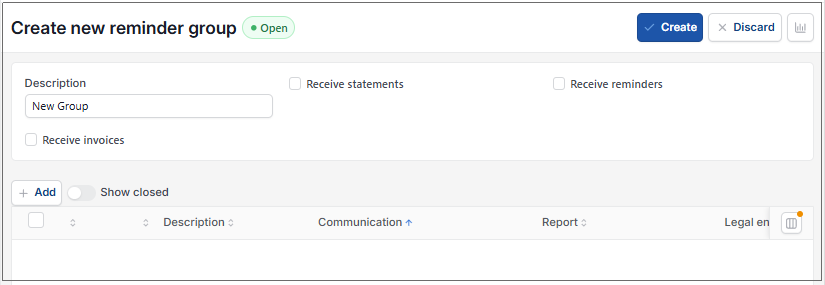
Add line(s) to trigger a reminder at different times. Enter the following options -
Description: Description of the Reminder level - e.g. 1st Polite Reminder
Communication: This is the Communication that will be sent which has previously been setup in Communication Setup.
Report: Report that will be sent with the communication.
Legal entity: Enter a Legal entity, if this communication is for a specific Legal entity only. If this is left blank, then the communication will apply to all Legal entities.
Min amount: Communication only sent if outstanding amount is above this Amount sitting.
Max amount: Communication not sent if outstanding amount is above this Amount sitting.
Min days: Number of days after payment Due Date before communication is sent.
Previous reminder lapse days: Before sending this communication, this is the number of days that have had to have lapsed since previous communication was sent.
Manual only: Select this option if you don't want this communication sent via Scheduler process.
Note
Any reminder letters that are pending can be seen in Reminder Letters. These can be selected and sent manually by selecting Send.
Once completed select Create .
Tip
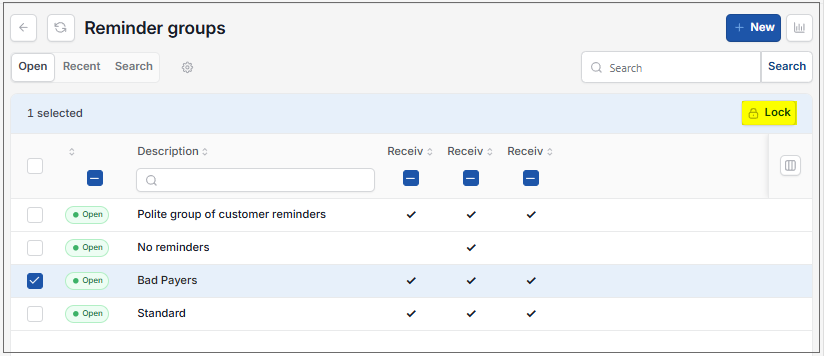
Any group no longer required can be Locked to prevent it being used in error.
Updated August 2026