Funds
Fund codes are unique identifiers used to track and manage different sources of funds within an organisation. These codes are particularly important in fund accounting, which is commonly used by non-profit organisations, government entities, and educational institutions.
Note
To view the legacy version, please select Legacy User Guide.
How to view Funds
Viewing Funds
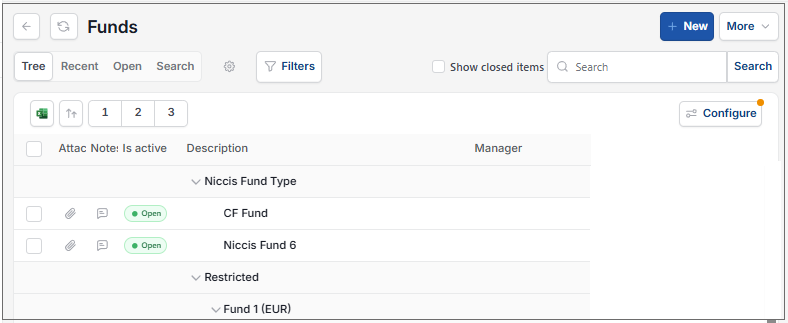
As per Generic Navigation options, either from left-hand navigation panel, expand Settings and select Funds from the General folder or enter Funds in the Search option.
This will then show the Funds on the system where normal customisation of Sets can be used.
Tip
To modify the columns displayed, select  option on the right of the column display, then tick/untick the information you want to hide or display.
How to create Funds
Create a new Fund
Select Fund from one of the options as shown above in Viewing a Fund.
Press New.
Enter the following fields.
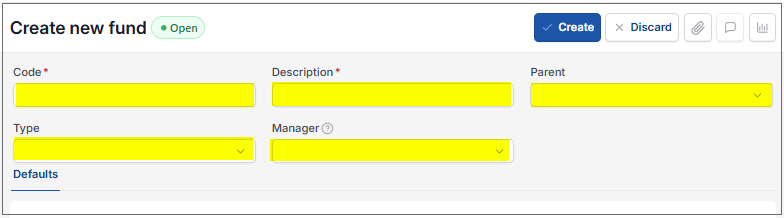
Code: This is the fund code. It should be short and capitalised; this is a unique reference field.
Description: This is the name of the fund.
Parent: Select the Parent from the dropdown list.
Type: Select the Fund Type from the dropdown list.
Manager: This is the Resource who is identified as the Fund Manager (NB. this is frequently used for workflow authorisation).
Select Create.
How to import Funds
Import Funds
Select Funds from one of the options as shown above in Viewing Funds.
Select the
 option and select Import.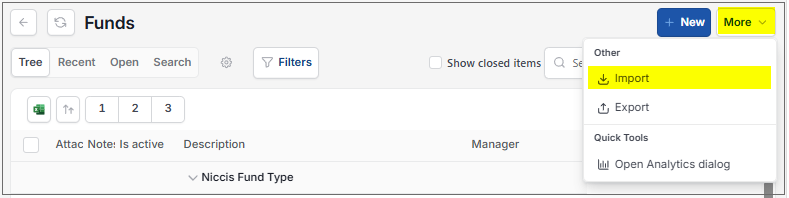
Enter the file to import from an external source.
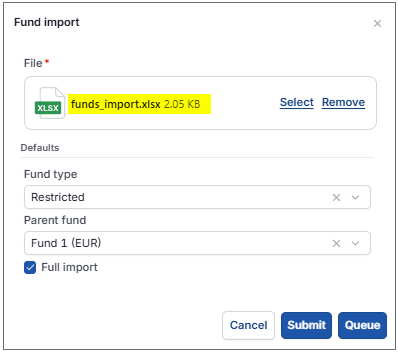
Defaults: These do not have to be specified.
Fund type: When this is specified, the Fund type will be applied to any funds which do not have those areas specified already in the import document.
So, the shaded Types below will return with Restricted.
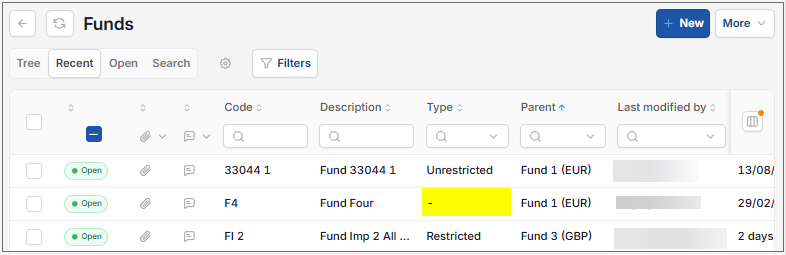
Parent fund. When this is specified, the Parent Fund will be applied to any funds which do not have those areas specified already in the import document.
Tip
If no import file exists, use the Export option to create a file template on your external source - see details below. Then load your data to that file ready for importing.
Select Submit to complete the import.
The Imports file will now show the Fund import showing imported data.
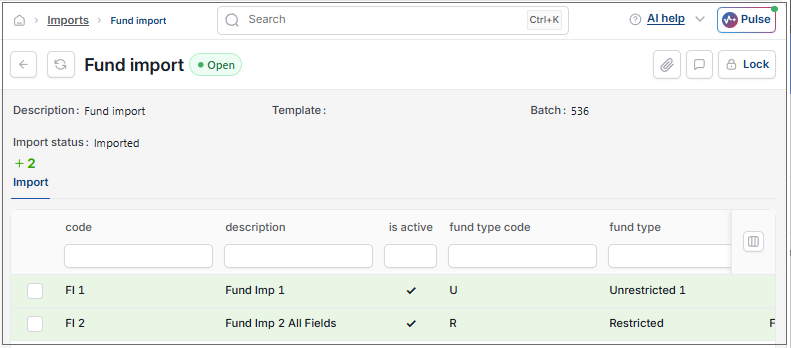
The second tab will show any new inserted Funds.
How to Export Funds
Export Funds
Select Funds from one of the options as shown above in Viewing Funds.
To Export the Tree view to Excel to include the rows as pivot tables, then select the
 icon.
icon.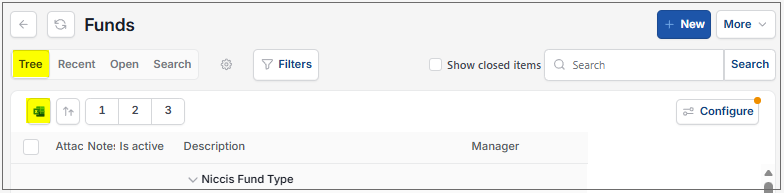
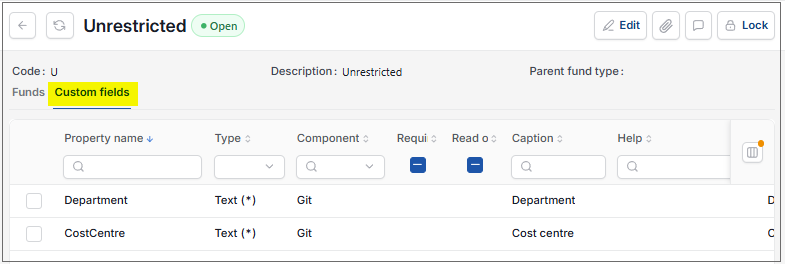
To export all Fund details including Custom fields defined in Fund types, then select the
option and select Export.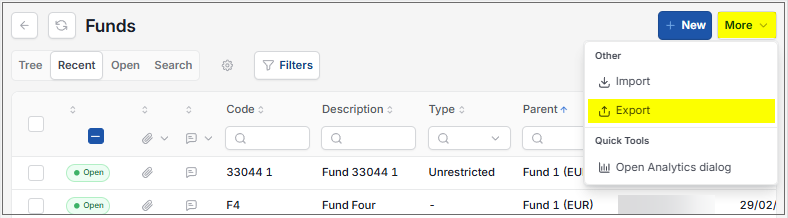
Enter the options to export.
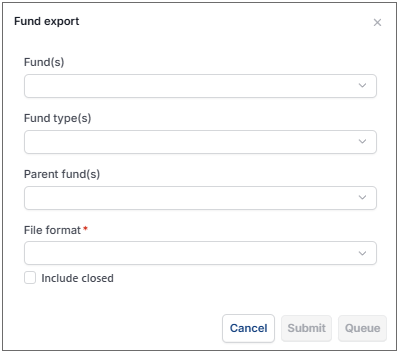
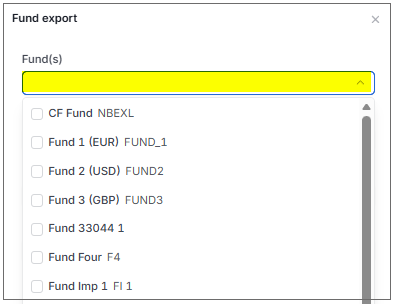
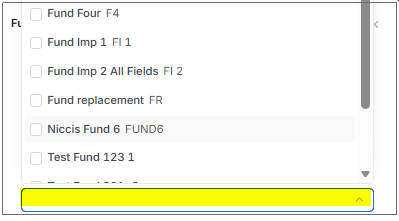
Fund(s): Select which funds to export. If none are selected, then all funds will be exported.
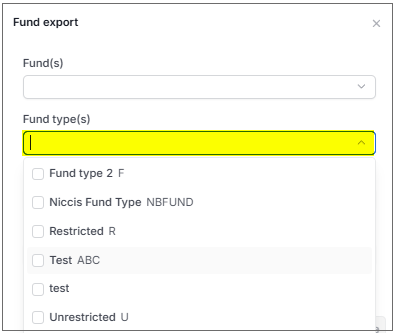
Fund type(s): Select which fund types to export. If none are selected, then all fund types will be exported.
Parent fund(s): Select which parent funds to export. If none are selected, then all parent funds will be exported.
Include closed: Ticking this option will include the closed/inactive funds in the export.
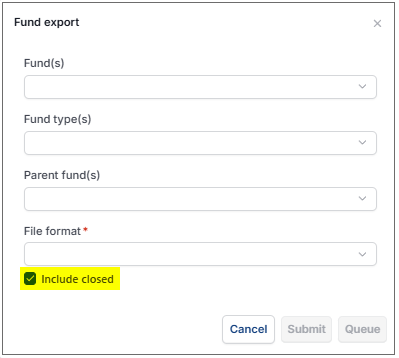
Select Submit or Queue to complete the export.
How to view the Year End Rollover
Year end rollover
Funds have been created to as an enhancement to the Year end rollover process for organisations that have Fund accounting, such as Charities or Not for profit organisations.
Each Fund can have a Fund type.
The Funds will have separate GL codes on the balance sheet, instead of having all income and expenditure showing on a single account.
The destination accounts are set in Retained profits in the Period End section in the Account defaults.
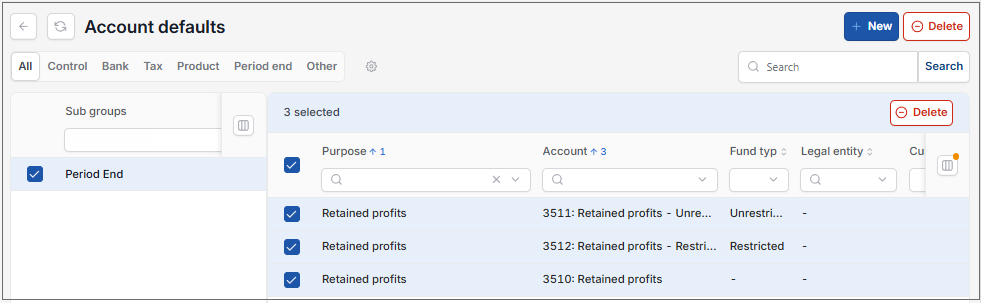
Specifying individual Funds or Fund types will point to the Destination Account which will be used in the Balance sheet.
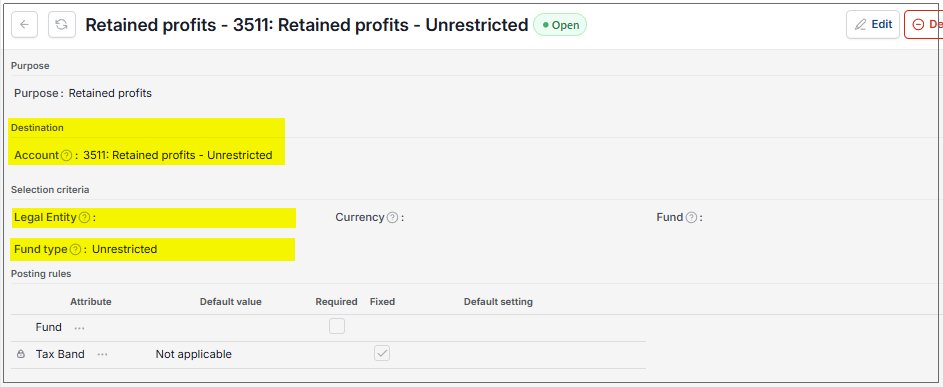
Destination Account: This is the destination account that will be defaulted from the selection criteria.
Fund: By entering a Fund, this will be used as part of the selection criteria when defaulting the destination account.
Fund type: By entering a Fund type, this will be used as part of the selection criteria when defaulting the destination account.
Running the Year end process for the particular Legal Entity will create a Manual journal.
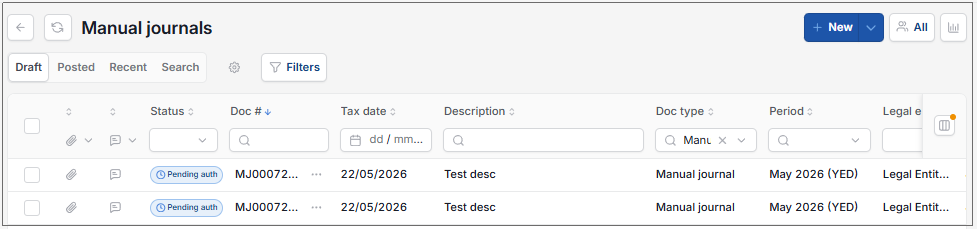
Once this is posted, the balances will be transferred to the Trial Balance against the appropriate GL code.
Updated August 2026