Eliminations
- Eliminations are appropriate when viewing consolidated financial statements e.g. the Trial balance, which offers the ability to filter with or without eliminations, or by eliminations only.
Note
To view the legacy version, please select Legacy User Guide.
How to view Elimination Automation
Viewing Elimination Automation
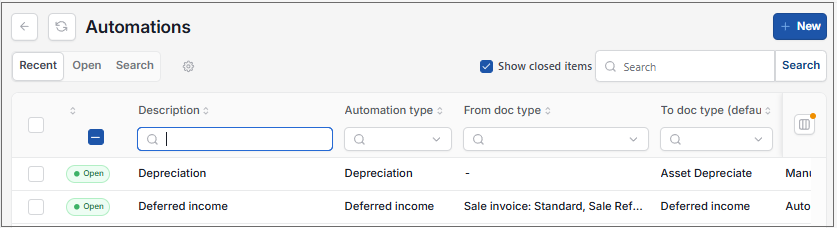
As per Generic Navigation options, either from left-hand navigation panel, expand Settings and select Automations from the Document folder or enter Automations in the Search option.
This will then show the Automations on the system where normal customisation of Sets can be used.
Tip
To modify the columns displayed, select  option on the right of the column display, then tick/untick the information you want to hide or display.
Select Elimination from the list of Automations.

How to run Elimination Automation
Run Elimination Automation
Select Elimination from Viewing Eliminations above.
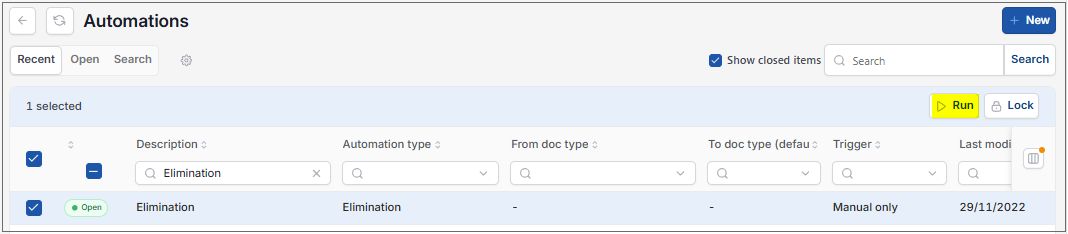
Select the automation then select Run.
Enter the automation criteria.
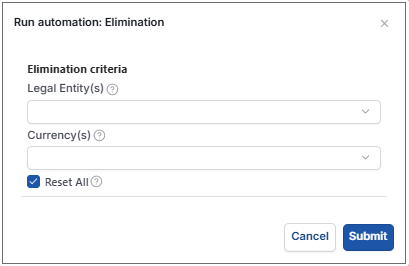
Legal Entities: By filling this out the document automation will process the correct Documents for the Legal Entity selected.
Currency: Select the correct Currency.
Reset All: Tick this checkbox to reset previous eliminations before resetting to reflect latest elimination settings.
Note
When the Reset All box is ticked, this will recalculate eliminations considering the documents that have had the eliminations box ticked on the line of the document in addition to the current elimination's settings.
When you are happy with the selected criteria and setup, select Submit.
Select OK to continue working. Automation progress will show on the bottom left of the screen showing either In progress or Complete - see details in step 5 of How to run Automations.
Updated September 2026