Aged Debt
Only Users with access to the Debt entry role will be able to view the Aged debtors screen.
Note
To view the legacy version, please select Legacy User Guide.
How to view Aged Debt
Viewing Aged Debt
As per Generic Navigation options, either from left-hand navigation panel, select Aged Debt from the Debt folder or enter Aged Debt in the Search option.
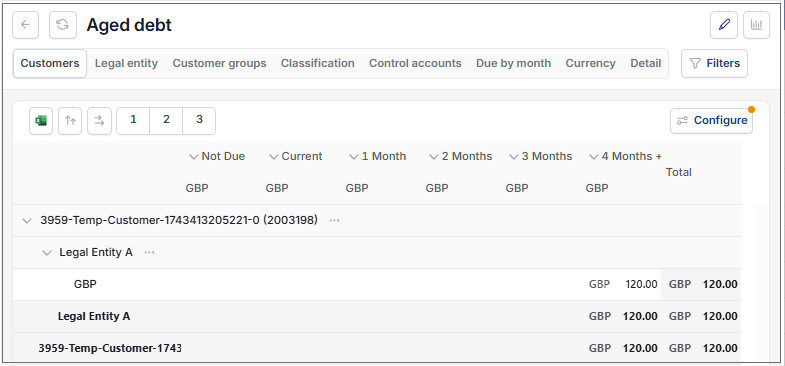
This will then show the Aged Debt on the system.
Tip
To modify the columns displayed, select  option on the right of the column display, then tick/untick the information you want to hide or display.
Filter Results
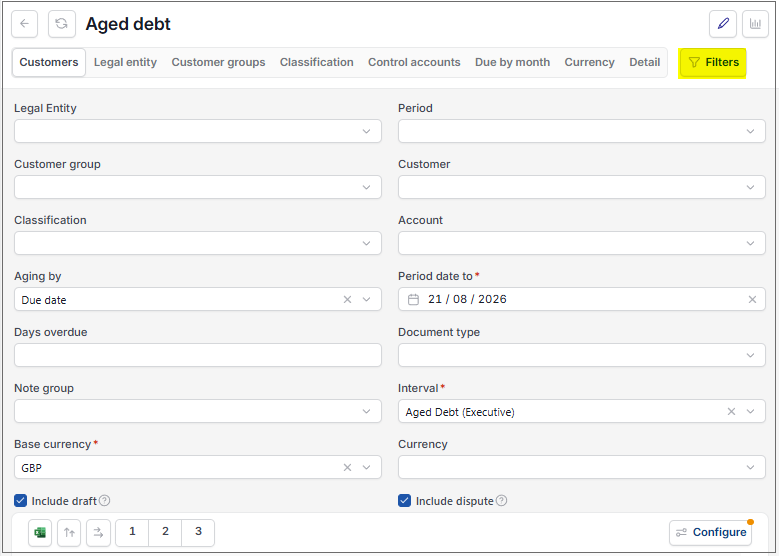
Use the filter parameters icon to adjust the results returned.
Tab options
The tab options provide alternative displays, for instance:

Customers: Displays the Debts by Customer account.
Legal entity: Displays primarily by Legal entity then by Customer account.
Control account: Displays primarily by Control Account then by Customer account.
Currency: Display totals per currency.
Depending on the column, clicking on the heading will display any additional information immediately below or provide a Sort option.
Clicking on the icons at the top of the screen allows the current display to be exported to Excel, expand all the rows, expand the columns or display the filters (toggle).
Filter results
Use the filter parameters icon to adjust the results returned.
Interval banding
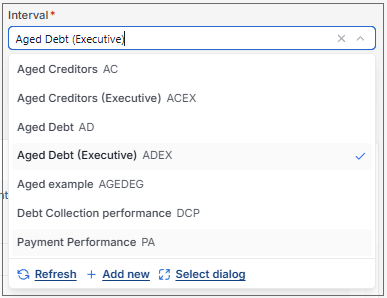
The interval filter displays a list of pre-defined intervals for the column banding displays, if required additional intervals can be created by contacting the support department.
The menu options provide alternative displays, for instance:
- The Customer menu option displays the Debtors by Customer account.
- The Legal entity menu option displays primarily by Legal entity then by Customer account.
- The Control account menu option displays primarily by Control Account then by Customer account.
- The Currency menu option will display totals per currency.
Depending on the column, clicking on the heading will display any additional information immediately below or provide a Sort option.
Clicking on the icons at the top of the screen allows the current display to be exported to Excel, expand all the rows, expand the columns or display the filters (toggle).
How to amend visible columns and groupings
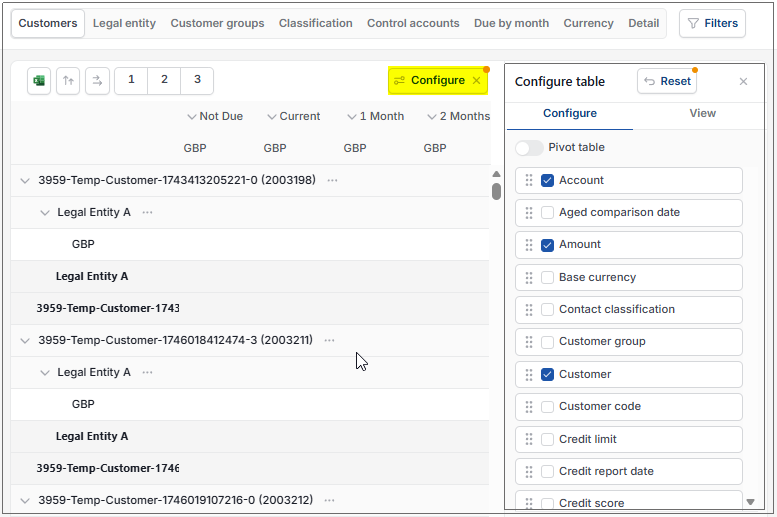
Amending columns and groupings
Within each Set, select the
 icon to amend the visible columns as well as the Pivot groupings.
Tick/untick the column checkbox to show/hide columns.
Note
Any changes you make will be saved for you as a user.
To revert to the default settings of the Sets, select the
 button.
Selecting the
 icon in this section will give two export options that will export the Aged Debt via a download file.
Export to Excel: Excel output will show summary rows with totals which disappear when the sections are collapsed.
Export to Excel (Retain totals): Excel output will show summary rows with totals. But the output will not collapse the totals row when the section is collapsed.
How to view the related documents
Viewing related documents
Clicking on any value will split the screen to display the individual transactions on a tab in the bottom section that make up the selected balance. This could be on any individual row or the total row to see all the transactions related to the column.
There can be multiple tabs open in the bottom section.
Clicking on the icon for any individual transaction will display the options for further information. Assuming you have the correct Access permissions, you can drill down to individual Documents and/ or allocations from here.
Updated August 2026