AI Detect beta
Feature Summary
AI detection and automation system within iplicit transforms manual accounting processes into intelligent, automated workflows that improve accuracy, reduce processing time, and enhance fraud detection capabilities.
Summary
The AI Detection automatically detects for purchase invoices through four core detection types:
Duplicate invoices: Identifies invoices with identical amounts from the same supplier within a number of days as set in the AI Detect section in Environment defaults - See Prerequisites.
Invoices from new suppliers: Identifies first-time vendor transactions.
Invoices entered outside normal business hours: Detects invoices entered between set times as set in the AI Detect section in Environment defaults - See Prerequisites.
Unusually high Supplier invoices: Identifies invoices exceeding 12-month rolling average (by legal entity & currency) by percentage as set in the AI Detect section in Environment defaults - See Prerequisites. If left blank, the default value of 300% is used.
All detections appear in a centralised AI Assistant Detection Panel where finance managers can review, filter, and manage flagged anomalies.
While this feature is in beta, detections are limited to Purchase invoices entered via the front end.
Warning
AI Detect will only detect for new items (Purchase Invoices submitted) since this feature is activated.
It will not retrospectively check your data.
Prerequisites
Add the AI Detection User Role to the User to be able to access the AI Detection panel, so that only authorised users can use the feature and system access rights are maintained - see User roles.
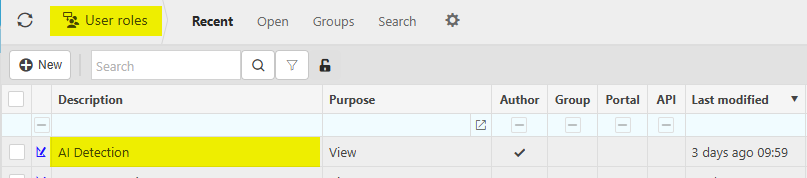
On the AI Detect section in Environment defaults, update or add settings to control the AI Detect results.
Note
This section is only for review or updating settings.
For example, if you DO NOT wish to detect potential duplicate invoices, then tick the box for Turn off duplicate invoice detection.
To activate ALL detection options, leave these boxes Unticked.
The User must reload iplicit after setting the AI Detection User Role (see above) to be able see this section.
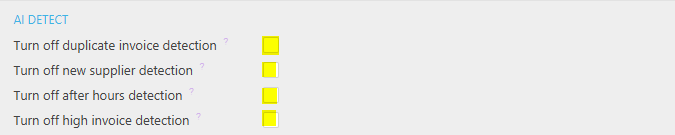
Turn off duplicate invoice detection: Tick to turn off the detection of potential duplicate invoices.
Turn off new supplier detection: Tick to turn off the detection of invoices from new suppliers.
Turn off after hours detection: Tick to turn off the detection of invoices created after hours.
Turn off high invoice detection: Tick to turn off the detection of unusually high invoices from a supplier.
These other AI Detect settings may change depending on your Company's preferences.
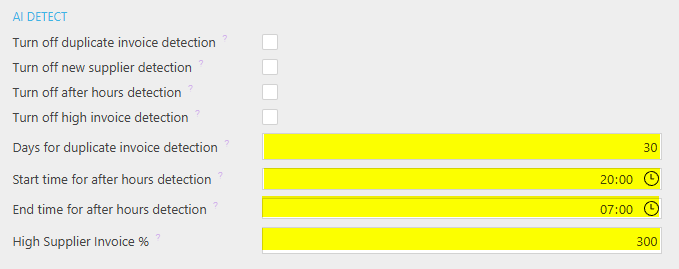
Days for duplicate invoice detection: Set the number of days to look back when detecting duplicate invoices. If left empty, a default of 30 days is used.
Start time for after-hours detection: Set the start time for after-hours detection. If left empty, the default is 20:00. Time is recorded in UTC.
End time for after-hours detection: Set the end time for after-hours detection. If left empty, the default is 04:00. Time is recorded in UTC.
High Supplier Invoice %: Enter the percentage threshold used to detect invoices that exceed the supplier's 12-month average (by Legal Entity & Currency). If left blank, the default value of 300% is used.
How to view AI Detection
Viewing AI Detection
On the top right-hand corner of the screen is an AI Detections option which will show a green notification dot if there are any AI Detections that are unread i.e. Created but not yet read.

Selecting this option will open the AI Pulse panel and will show the number of AI Detections.
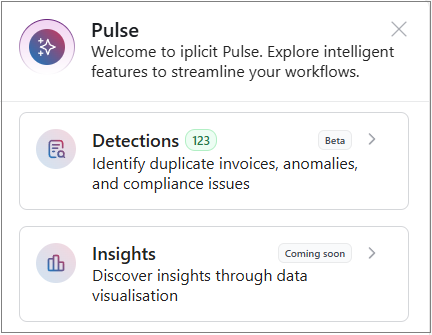
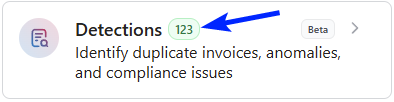
Select the Detection panel to show all the duplicate invoices, anomalies and compliance issues.
Note
The number of new Detections, if any, will be displayed as a number.
This tab will show all AI Detections.
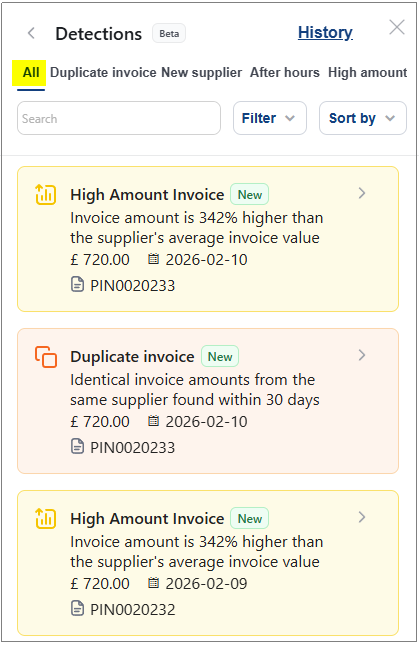
Any detection that is new, i.e. has not already been read, will show with the  icon.
icon.
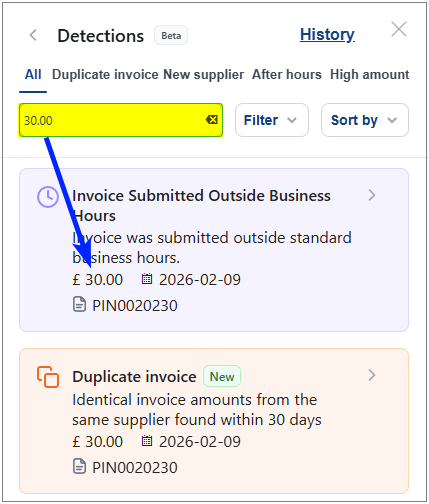
Search allow users to refine the list of anomaly items displayed in the Detection Panel via a search option.
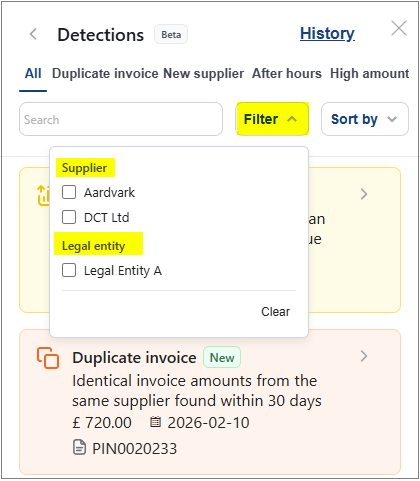
Filtering features allow users to refine the list of anomaly items displayed in the Detection Panel by selecting specific Suppliers or/and Legal entities.
Note
Only Legal entities that the User has access to within Data Access Control (DAC) will show.
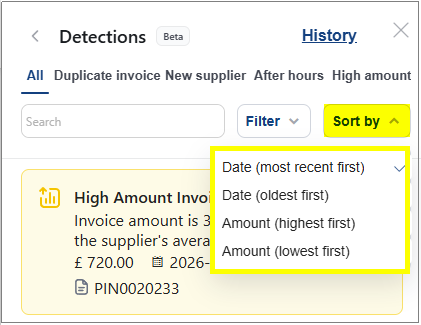
Sort by options will allow the AI Detection items to be sorted by Date (Most recent to older, or vice versa) or by Amount (Lowest to highest, or vice versa).
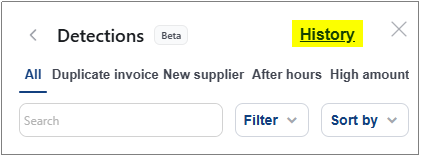
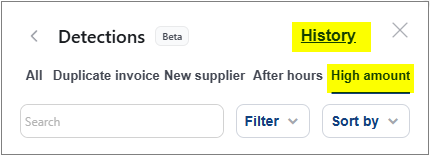
History
Once AI detection items have been reviewed, they are removed from the default view but will remain accessible via the History tab.
Reviewed anomalies will now have the status Reviewed.
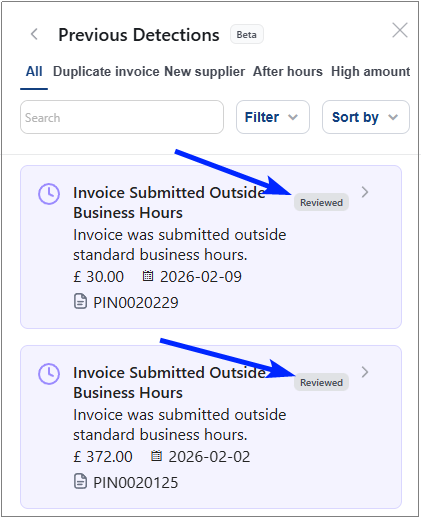
The Search, Filter and Sort by options will work in a similar way as in the default views.
This tab identifies potential duplicate payments by checking for Invoices with identical gross currency amounts from the same Supplier within a number of days defined by the environment setting (default is 30).
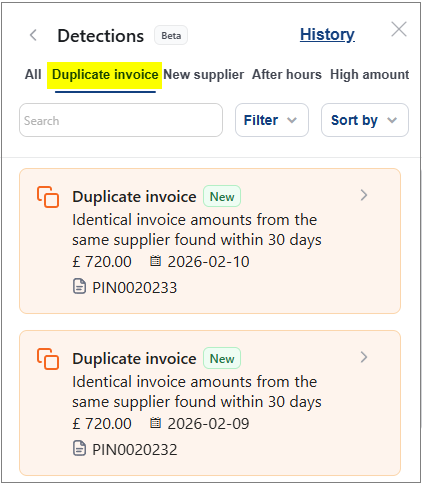
Any detection that is new, i.e. has not already been read, will show with the icon.
Each item can be selected to show further details -
Header details -
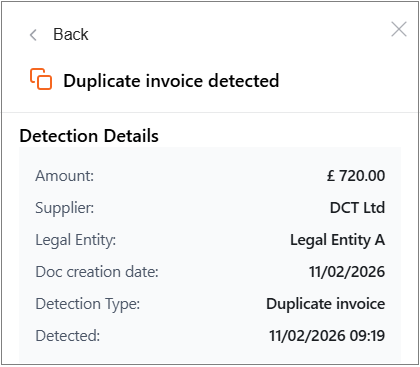
A list of the Invoices that are duplicated.
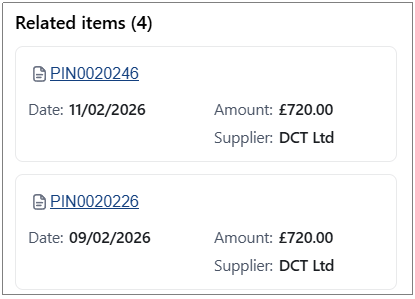
These Invoices can be individually selected and opened so the User can compare with each other.
Note
The Log tab on the Invoice will have an entry Potential duplicate invoice detected.
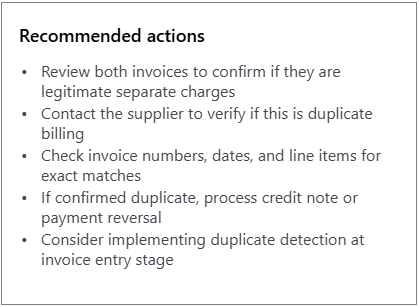
Recommended actions that the User should do.
Once the AI detection item has been reviewed, select the Mark as reviewed option.

This moves them to the History section and logs the date/time and user that completed the review. The item remains accessible through the history tab for reference and compliance purposes.
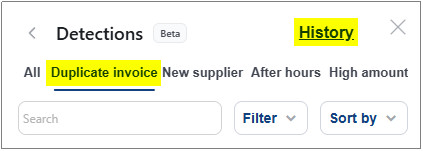
Reviewed Duplicate invoices will now have the status Reviewed.
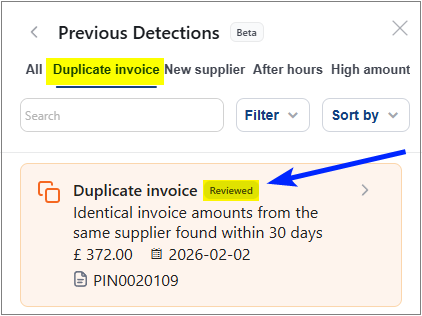
Also, it will show who reviewed the item and the review date.
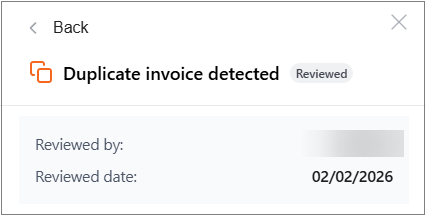
The Log tab on the Invoices will have an entry Duplicate invoice detection marked as reviewed.
Note
The Search, Filter and Sort by options are available in the same way as the All tab.
This feature identifies invoices entered for Suppliers with no previous invoice history in the system. New supplier invoices can present higher risk for fraud or data entry errors, so flagging them allows finance teams to perform additional verification before payment.
The detection runs automatically when invoices are created and alerts users through this AI Assistant Detection Panel.
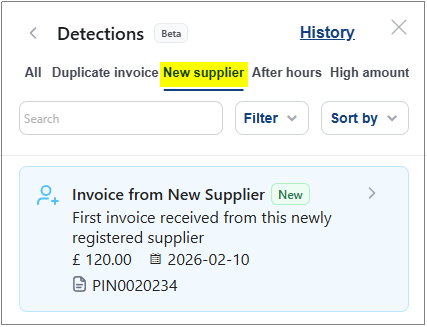
Any detection that is new, i.e. has not already been read, will show with the icon.
Each item can be selected to show further details -
Header details -
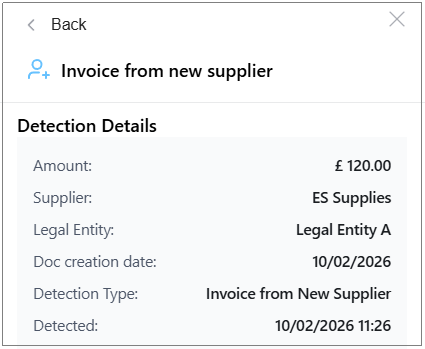
A list of the Invoices that have new suppliers.
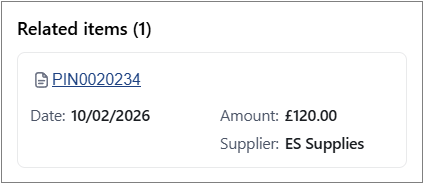
These Invoices can be individually selected and opened so the User can check the Supplier.
Note
The Log tab on the Invoice will have an entry An invoice from a new supplier detected.
Recommended actions that the User should do.
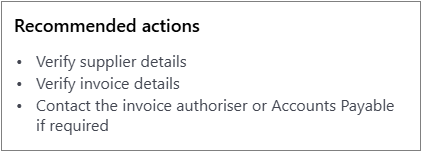
Once the AI detection item has been reviewed, select the Mark as reviewed option.
This moves them to the History section and logs the date/time and user that completed the review. The item remains accessible through the history tab for reference and compliance purposes.
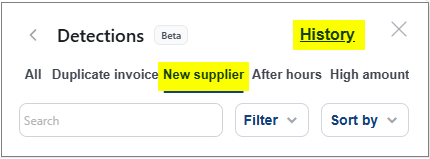
Reviewed New suppliers will now have the status Reviewed.
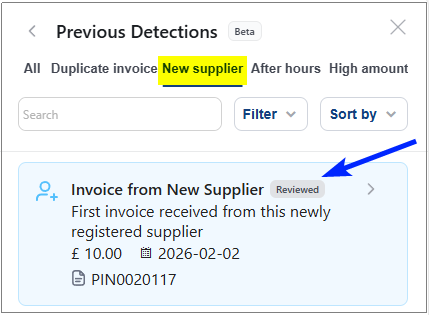
Also, it will show who reviewed the item and the review date.
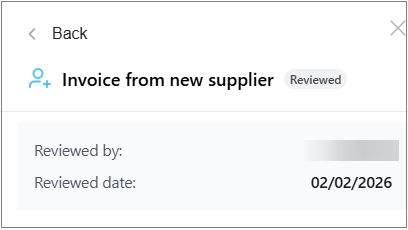
The Log tab on the Invoices will have an entry New supplier detection marked as reviewed.
Note
The Search, Filter and Sort by options are available in the same way as the All tab.
This feature flags invoices submitted outside typical working hours as a fraud prevention measure. Invoices submitted during After hours (as set in Environment defaults - see prerequisites above) may indicate unauthorized access or fraudulent activity. The system monitors invoice creation timestamps and automatically alerts finance teams to these anomalies through this AI Assistant Detection Panel, enabling timely investigation of suspicious activity.
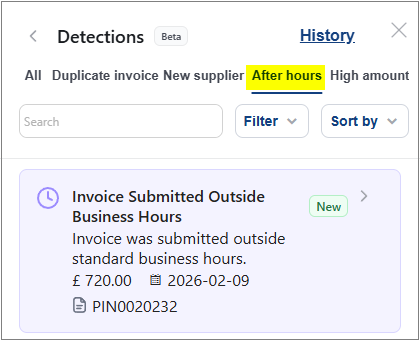
Any detection that is new, i.e. has not already been read, will show with the icon.
Each item can be selected to show further details -
Header details -
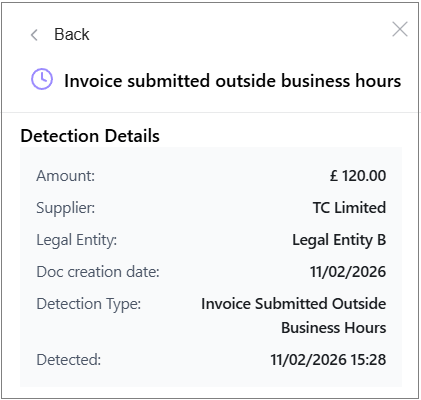
A list of the Invoices that are after hours.
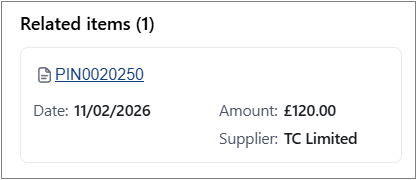
These Invoices can be individually selected and opened so the User can check the details.
Note
The Log tab on the Invoice will have an entry An invoice submitted after working hours detected.
Recommended actions that the User should do.
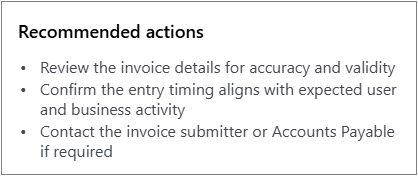
Once the AI detection item has been reviewed, select the Mark as reviewed option.
This moves them to the History section and logs the date/time and user that completed the review. The item remains accessible through the history tab for reference and compliance purposes.
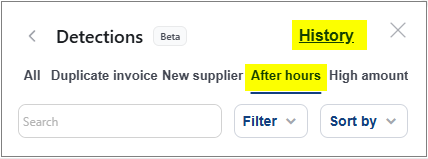
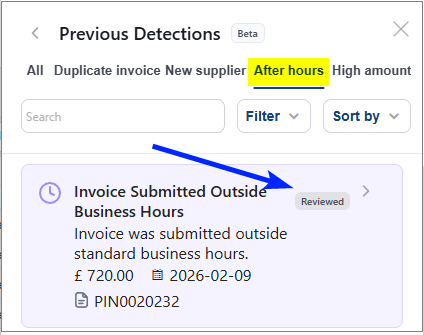
Reviewed After hours will now have the status Reviewed.
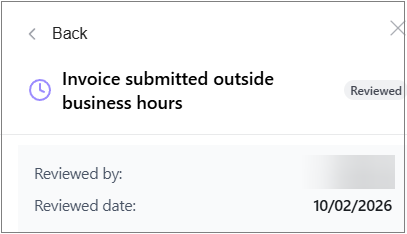
Also, it will show who reviewed the item and the review date.
The Log tab on the Invoices will have an entry An invoice submitted after working hours marked as reviewed.
Note
The Search, Filter and Sort by options are available in the same way as the All tab.
This feature flags invoices that exceed the supplier’s 12-month average (by legal entity & currency) by percentage as set in the AI Detect section in Environment defaults - See Prerequisites. If left blank, the default value of 300% is used.
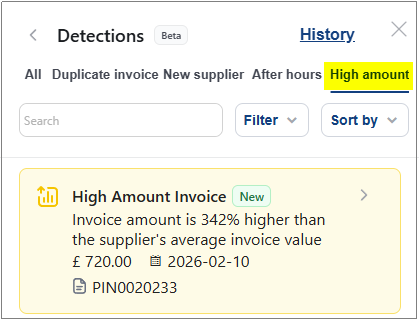
Any detection that is new, i.e. has not already been read, will show with the icon.
Each item can be selected to show further details -
Header details -
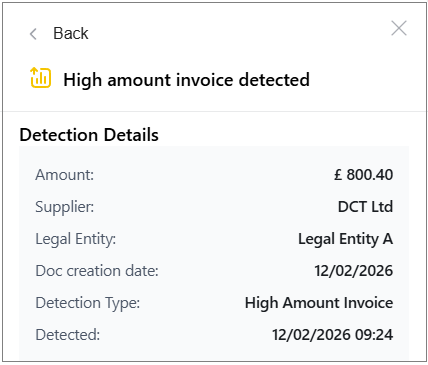
A list of the Invoices that have high amounts.
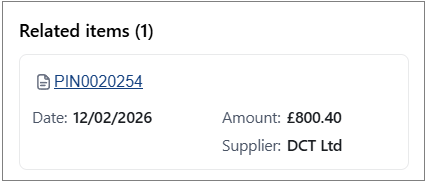
These Invoices can be individually selected and opened so the User can check the details.
Note
The Log tab on the Invoice will have an entry An invoice with an amount higher than average detected.
Recommended actions that the User should do.
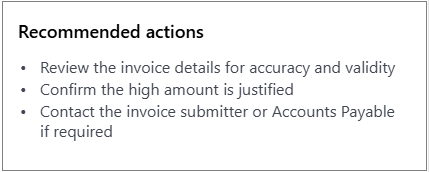
Once the AI detection item has been reviewed, select the Mark as reviewed option.
This moves them to the History section and logs the date/time and user that completed the review. The item remains accessible through the history tab for reference and compliance purposes.
Reviewed After hours will now have the status Reviewed.
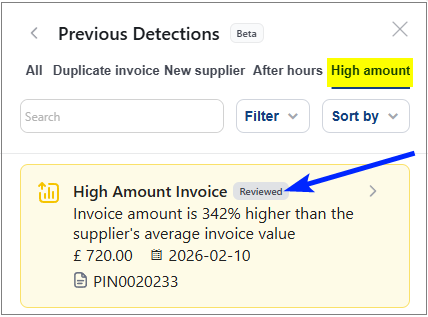
The Log tab on the Invoices will have an entry High invoice detection marked as reviewed.
Note
The Search, Filter and Sort by options are available in the same way as the All tab.
Updated February 2026