Resource Group
Note
To view the legacy version, please select Legacy User Guide.
Resources can be assigned to resource groups which result in the resource inheriting the groups defaults such as access, department and resources manager.
The screenshot below shows a sample grid of resource groups, which includes some key information.
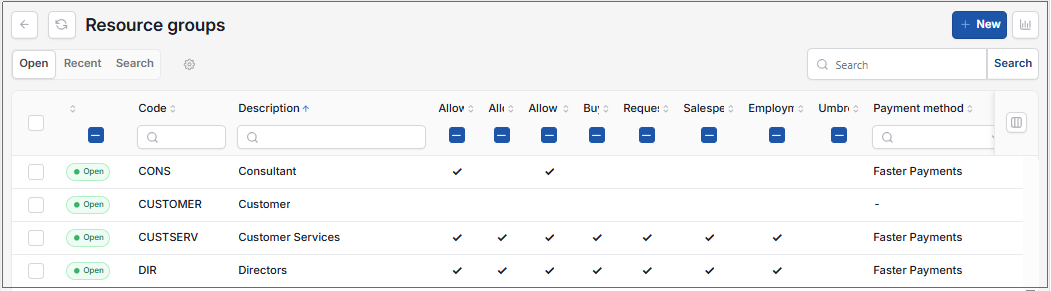
Code: This will be the resource groups code.
Tick boxes: The tick boxes show what features the resource group has access to.
Tip
To modify the columns displayed, select
 option on the right of the column display, then tick/untick the information you want to hide or display.
Edit the features the resource group allows.
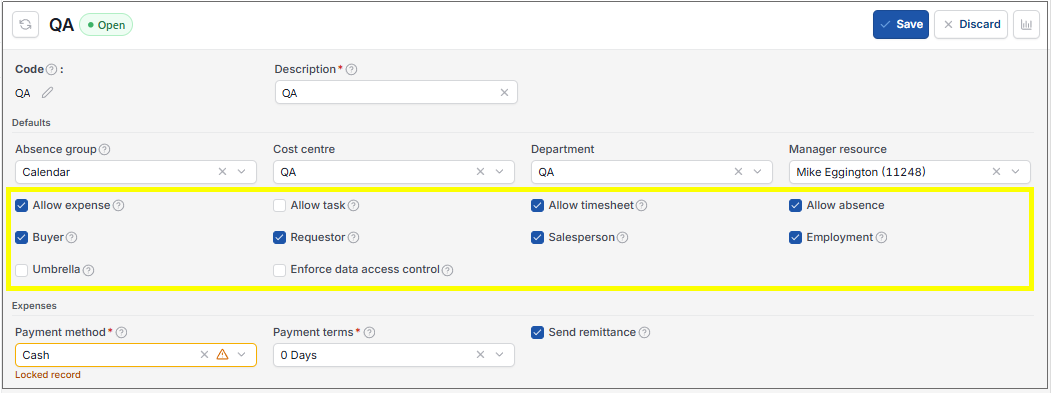
- Allow expense: Tick this option to default the enabling of expenses for the related resource.
- Allow task: Tick this option to default the enabling of project tasks for the related resource.
- Allow timesheet: Tick this option to default the enabling of timesheets for the related resource.
- Allow absence: Tick this option to default the enabling of absence for the related resource.
- Buyer: Tick this option to default the related resource to be a "Buyer" (used for Purchase orders).
- Requester: Tick this option to use this payment method as the default for the related resource.
- Salesperson: Tick this option to default the related resource to be a "Sales person" (used for Sales Quotes, Orders & Invoices).
- Employment: Tick this option to default the related resource enabling the recording of "Employment" details.
- Umbrella: Tick this option to default the "Umbrella" for the related recource.
- Enforce data access control: If this option is ticked then a Legal entity must be specified when creating a Resource in this group. Data access control will be enforced based on the legal entity if data access control is enabled.
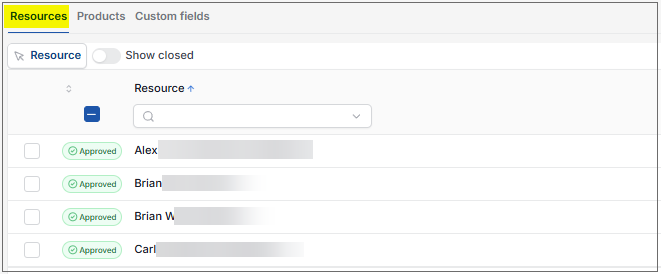
You can check which resources are in a group by clicking into a group then viewing the resources tab.
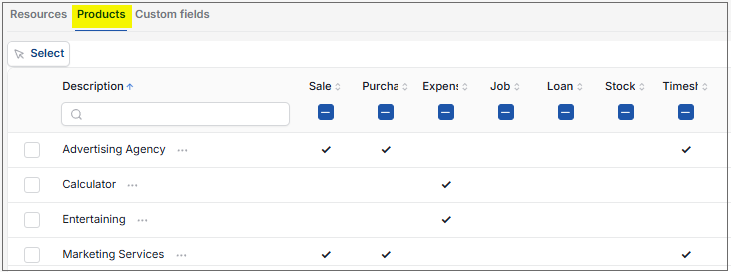
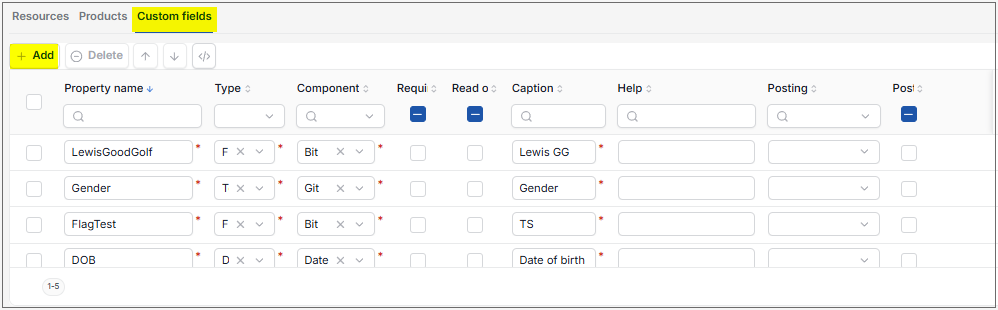
 in the Custom fields tab, then filling out the selection criteria.
Updated September 2026