Chart of Account Groups
Note
To view the legacy version, please select Legacy User Guide.
Only users with access to the ‘Account admin’ role will be able to view the Chart of account groups.
Each new Account created on the Chart of Accounts must be assigned to a group, which should be the immediate parent.
Tip
It is also possible to create a Group at the time of creating the General Ledger code if it does not already exist, using the ‘+’ icon.
There can be as many Group & Sub-Group levels as required. Existing Groups can be amended by Editing or Locked from display if not required.
Note
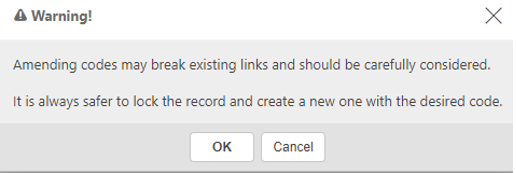
If the Group code is amended a Warning! window will display.
It is possible to change the code & all the historical use of the code throughout the system will be updated with the new code, but this should be done with caution with no other users logged in.
How to view Chart of Account Groups
Viewing Chart of Account Groups
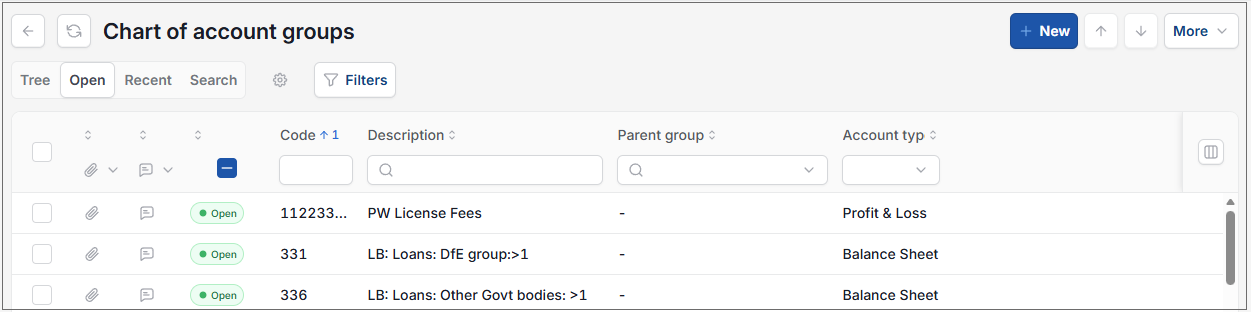
As per Generic Navigation options, either from left-hand navigation panel, expand Settings and select Chart of account groups from the GL folder or enter Chart of account groups in the Search option.
This will then show the Chart of account groups on the system where normal customisation of Sets can be used.
Tip
To modify the columns displayed, select  option on the right of the column display, then tick/untick the information you want to hide or display.
How to create Chart of Account Groups
Create a Chart of Account Group
Select Chart of account groups from one of the options as shown above
Select New.
Enter the fields to identify the group.
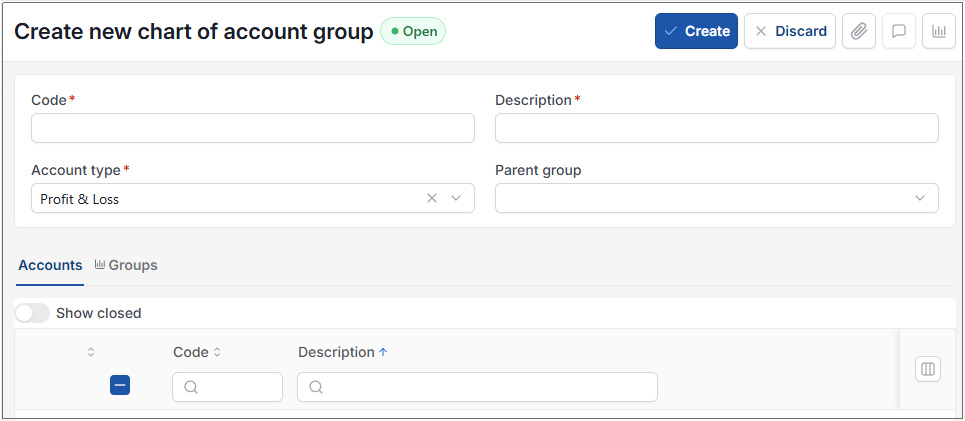
Code: mandatory field for unique code for the group.
Description: description (once completed the Create button will become available).
Account type: Balance Sheet or Profit & Loss.
Parent Group: immediate parent group for position on the Accounts Tree.
Tip
There can be multiple Tree designs, by default iplicit will display using the hierarchy as per the Groups.
Select Create upon completion.
Tip
From the
 option, Groups can be -
Amended.
Locked if no longer required.
Copied (from within the open record).
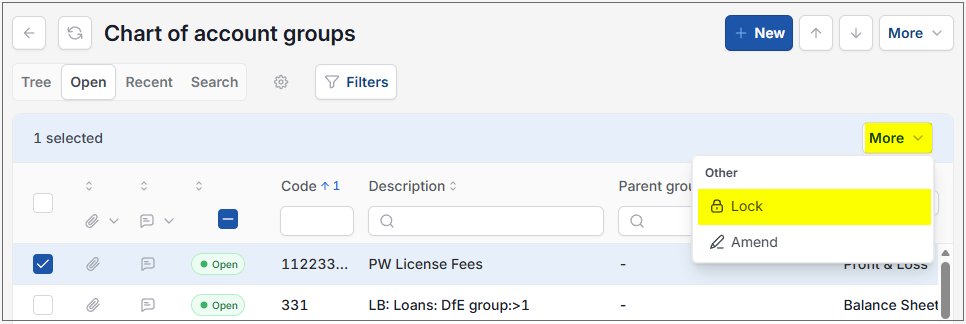
Locked Groups can be deleted if they are not referenced by Chart of Accounts or other Chart of Account Groups.
Updated August 2026