Dispute Groups
Only Users with access to the Debt admin role will be able to add Dispute groups.
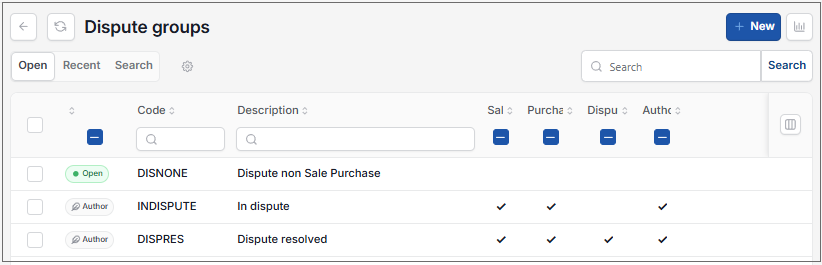
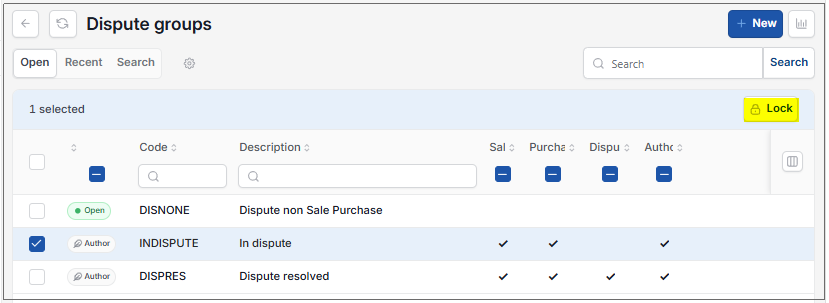
There are some pre-configured Dispute groups, which can be Edited or Locked.
Tip
Leave the two Author based one’s as standard one to use for genuine disputed documents but create additional ones for documents held for other reasons i.e. internal queries, coding checks etc.
Dispute groups are used on transactions when entering the details of the dispute to allow filtering to be applied.
Note
To view the legacy version, please select Legacy User Guide.
How to view Dispute Groups
Viewing Dispute Groups
As per Generic Navigation options, either from left-hand navigation panel, expand Settings and select Dispute groups from the Debt folder or enter Dispute groups in the Search option.
This will then show the Dispute groups on the system where normal customisation of Sets can be used.
Tip
To modify the columns displayed, select  option on the right of the column display, then tick/untick the information you want to hide or display.
How to add Dispute Groups
Adding a Dispute Group
Select Dispute Group from one of the options as shown above in Viewing a Dispute Group.
Select New.
Enter a Code & Description to identify the group.
Select the options as required
Note
Author: this would be pre-selected on the ‘Author Based’ In Dispute & Dispute Resolved to indicate this is part of the standard system (there is no need to un-tick these). New groups created do not need need this selected. Sale & Purchase: identifies which ledger(s) the group should be available for use. Dispute Resolved: indicator to identify dispute entries are no longer subject to Dispute status, thus the transaction can now proceed with the next stage.
Once completed select Create .
Tip
- Any group no longer required can be Locked to prevent it being used in error.
Updated August 2026