Punchout
Note
To create new Punchout suppliers, please contact the Support Team via support@iplicit.com.
Punchout is a way for a company’s procurement system to connect directly to a supplier’s online shop.
Note
To view the legacy version, please select Legacy User Guide.
How to view Punchout suppliers
Viewing Punchout
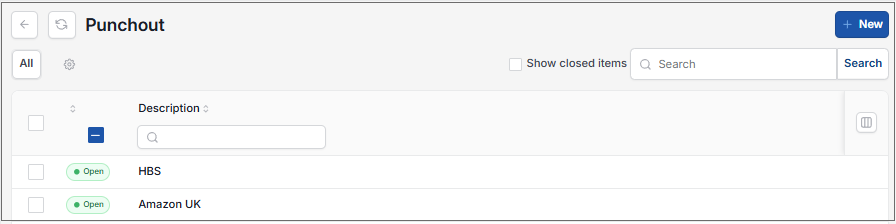
As per Generic Navigation options, either from left-hand navigation panel, expand Settings and select Punchout from the Purchases folder or enter Punchout in the Search option.
This will then show the Punchout on the system where normal customisation of Sets can be used.
Tip
To modify the columns displayed, select  option on the right of the column display, then tick/untick the information you want to hide or display.
How to lock Punchout suppliers
Lock Punchout Supplier
Lock Punchout services but leave on the system in case needed for future use.
Go to Punchout menu.
Select the Provider to lock - this will also work if the Provider is selected and opened.
Select Lock.
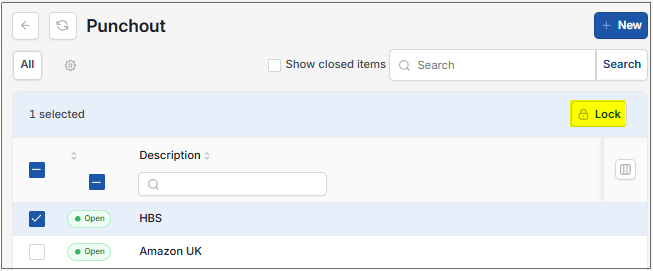
This will then show the Provider as Closed.
To Unlock, select the Closed provider, then select Unlock from the
 option.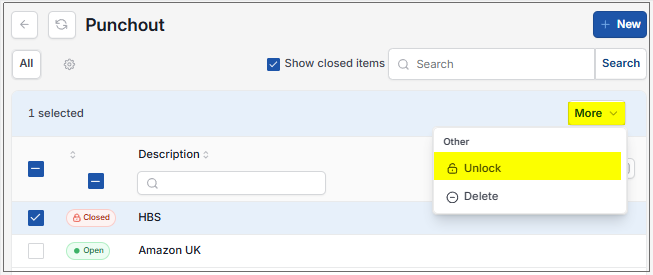
How to delete Punchout suppliers
Delete Punchout Supplier
Delete locked Punchout services, so that unused or obsolete providers can be fully removed from the system and do not remain indefinitely.
Go to Punchout menu.
Select the closed Provider to delete - this will also work if the closed Provider is selected and opened.
Select Delete from the
option.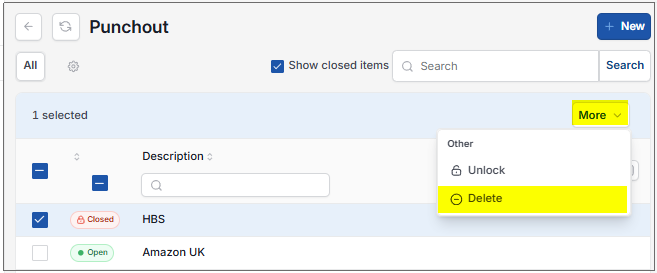
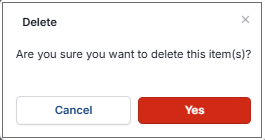
Confirm deletion.
Updated October 2026