Activities
Within an HR system, Activity fields are used to capture and manage various aspects of employee activities and interactions within the organisation.
Note
To view the legacy version, please select Legacy User Guide.
How to view Activities
Viewing Activities
As per Generic Navigation options, either from left-hand navigation panel, expand Settings and select Activities from the People folder or enter Activities in the Search option.
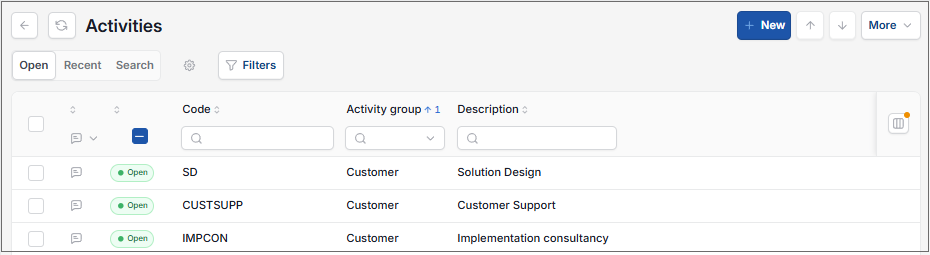
This will then show the Activities on the system where normal customisation of Sets can be used.
Tip
To modify the columns displayed, select  option on the right of the column display, then tick/untick the information you want to hide or display.
How to add Activities
Adding Activities
Select Activities from one of the options as shown above in Viewing Activities.
Select New.
Enter a unique Code, Description and Activity group.

Select Create to save.
How to export Activities
Export Activities
Select Activities from one of the options as shown above in Viewing Activities.
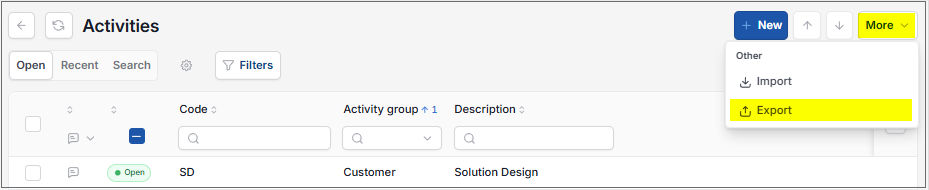
Select Export from the
 option.
Enter Activity group to export from the dropdown list.
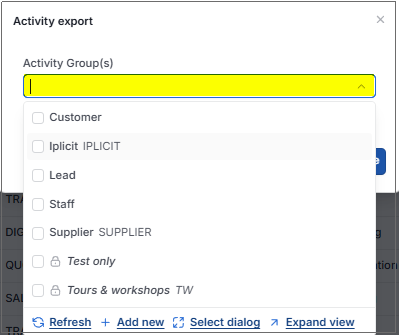
Select Submit to save.
Selecting the activity_export.xlsx ...
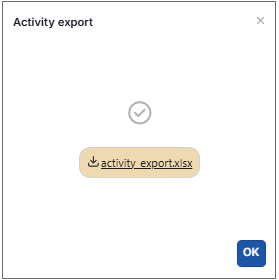
... will open an Excel spreadsheet showing all the selected Activities.
How to import Activities
Import Activities
Select Activities from one of the options as shown above in Viewing Activities.
Select the Import from the
option.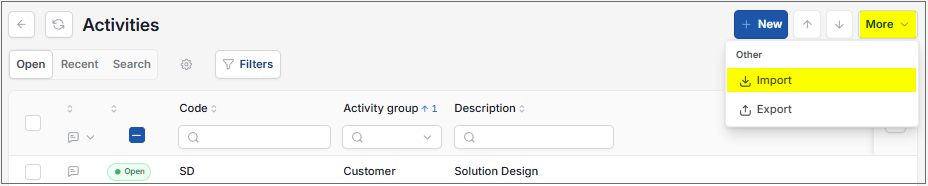
Select the Excel file to import.
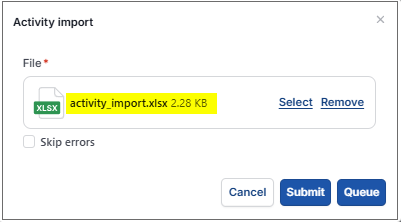
Select Submit to save.
How to edit Activities
Editing Activities
Select Activities from one of the options as shown above in Viewing Activities.
Select and open the Activity to edit.
Select Edit.

Edit Description or Activity group.

Select Save to save changes.
How to delete Activities
Deleting Activities
Select Activities from one of the options as shown above in Viewing Activities.
Select and open the Activity to delete.
Select the Lock options.

Select Delete from the
option.
Or select Unlock.
Updated September 2026