Automation Types
Note
To view the legacy version, please select Legacy User Guide.
Viewing Automation types
Automation Types can be accessed via the Automation type attribute within other folders e.g. Automations.
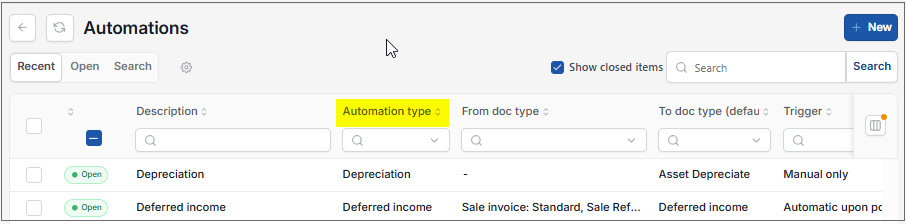
Pressing the Ctrl key, underscores any field that will open further information. This includes the Automation type field.
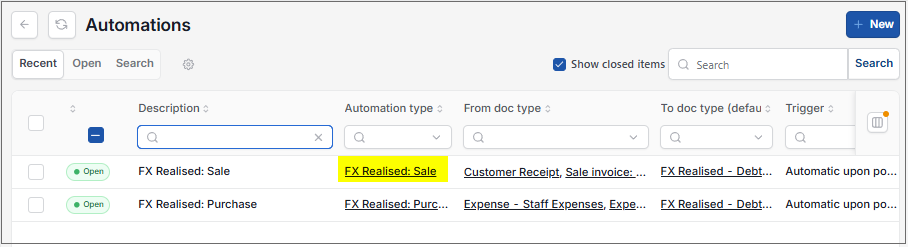
Selecting the Automation type underscored, will open it up in a separate folder.
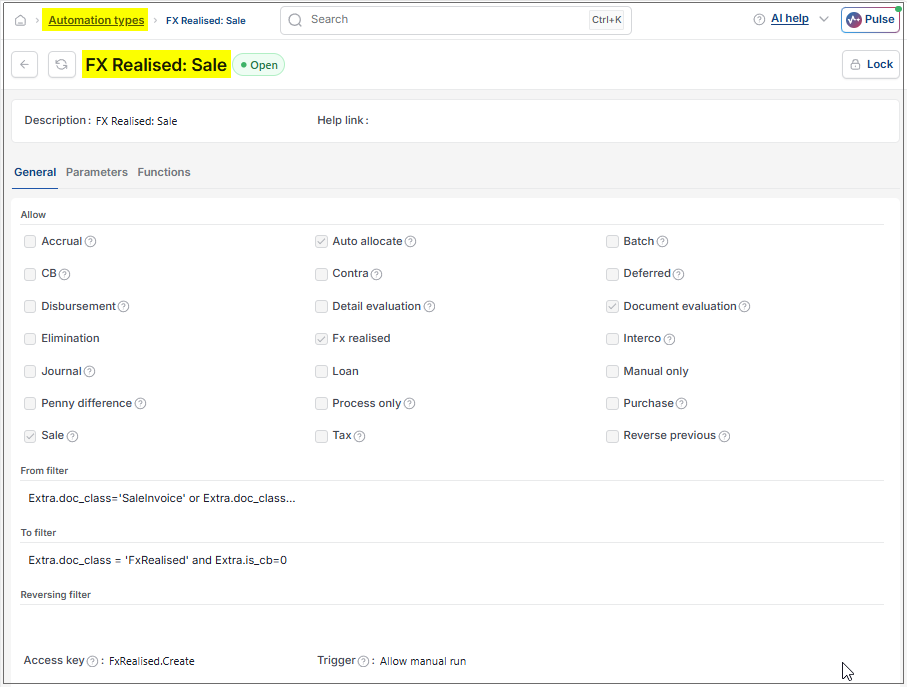
Selecting Automation type (next to the refresh icon) will open all the Automation types that have been set up.
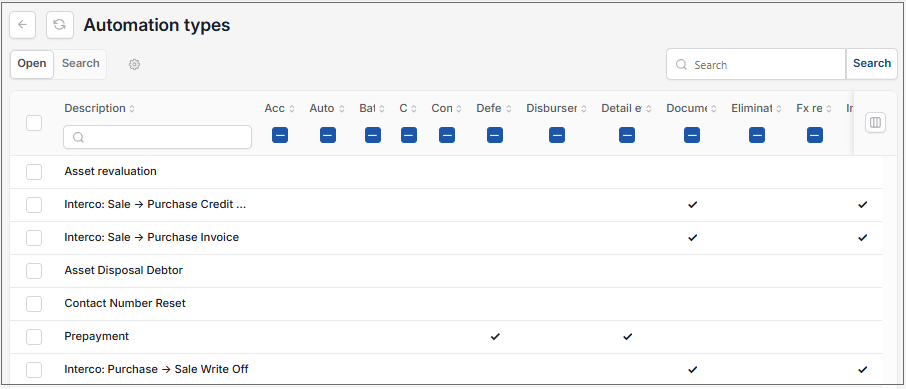
This shows the different Document types that the automation can be used on.
Tip
To modify the columns displayed, select
 option on the right of the column display, then tick/untick the information you want to hide or display.
Viewing individual Automation type
From the Automation types folder, select and open the individual Automation type to view.
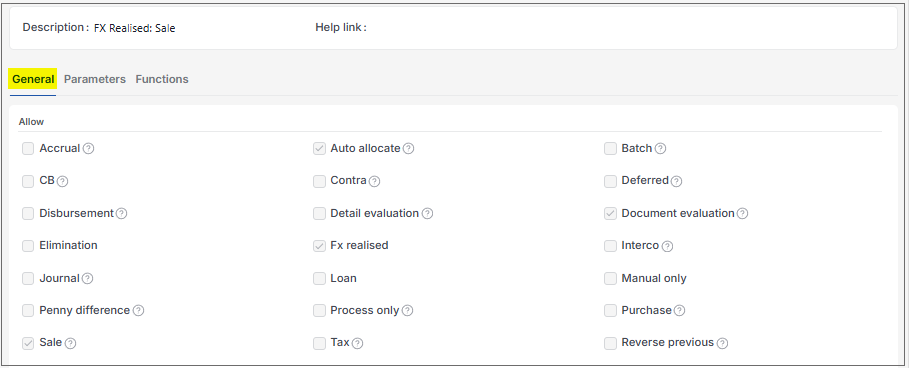
The general tab presents the Allow tick boxes which allow the automation to be used on different Document types.
From filter: Select the earliest document date that you wish to include.
To filter: Select the latest document date that you wish to include.
Access Key: Select the attribute operation that is required for a user to be able to see this automation type and related document automations.
Trigger: This is the default behaviour that will be applied to automations of this type.

Updated September 2026