Budgeting templates
Note
To view the legacy version, please select Legacy User Guide.
How to view Budgeting templates
Viewing Budgeting templates
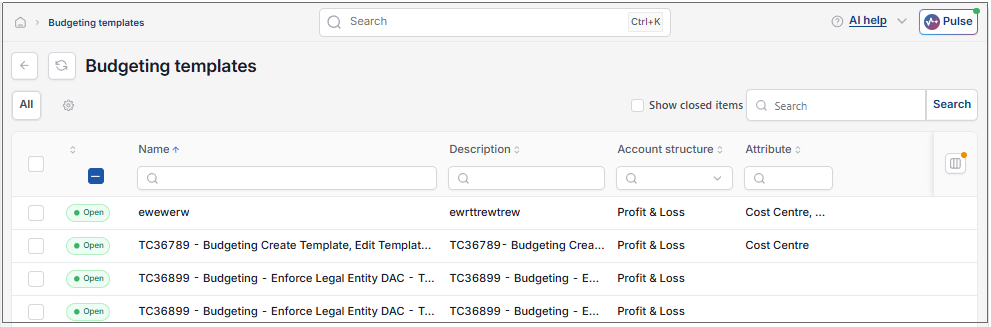
As per Generic Navigation options, either from left-hand navigation panel, select Budgeting templates from the Budgeting folder or enter Budgeting templates in the Search option.
This will then show the Budgeting templates on the system where normal customisation of Sets can be used.
Tip
To modify the columns displayed, select  option on the right of the column display, then tick/untick the information you want to hide or display.
How to edit Budgeting templates
Editing Budgeting templates
Select Budgeting templates from one of the options as shown above in Viewing Budgeting templates.
Select and open the Budgeting template to edit.
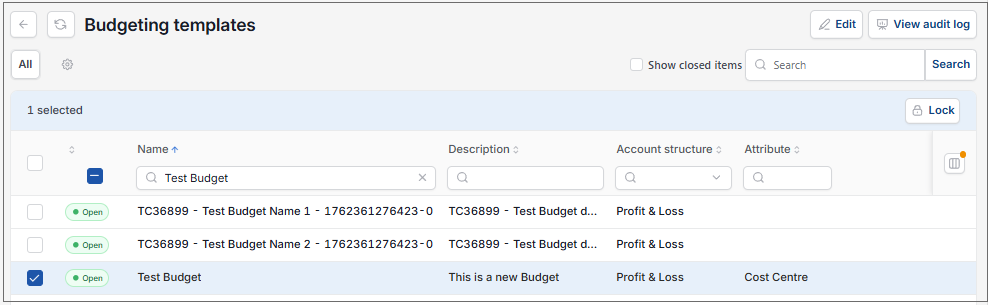
Select Edit.
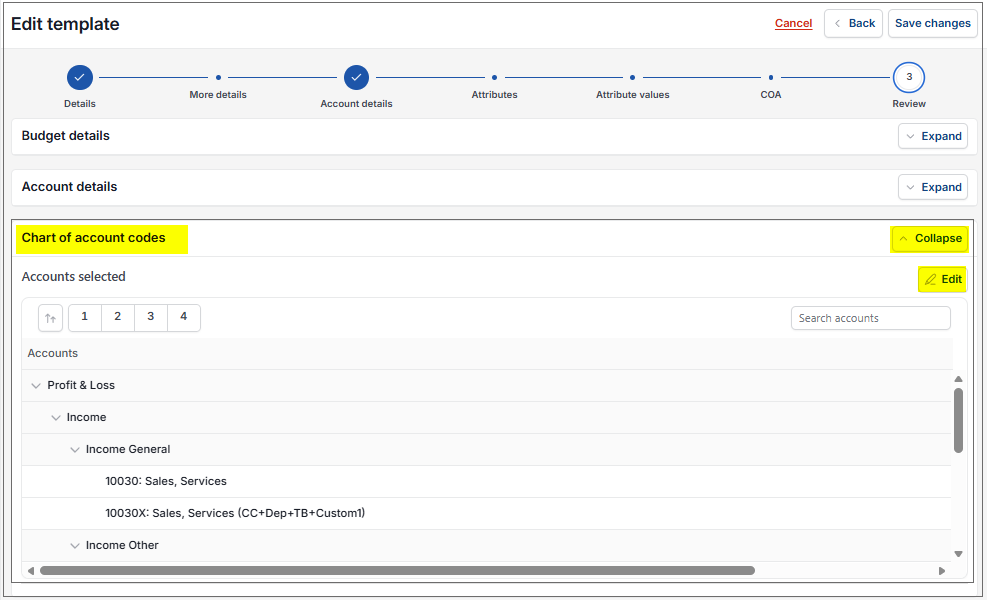
Use the
 and
and  buttons to open and close the following sections.
Budget details
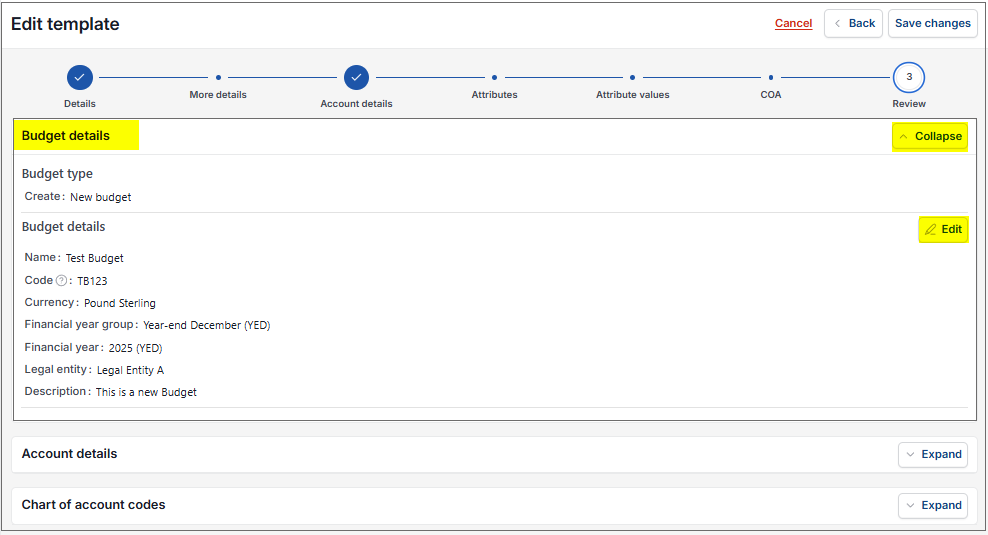
- Use side scroll bar to see all data.
Account details
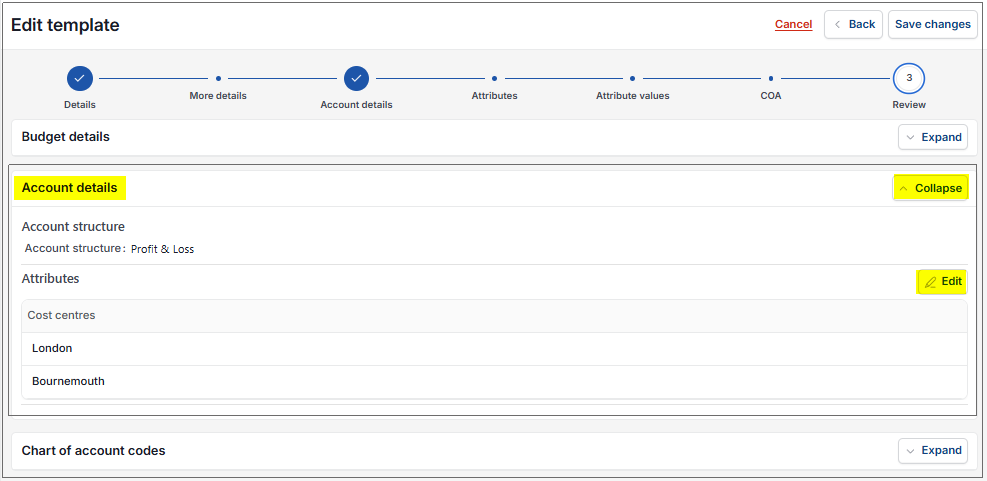
Chart of Accounts
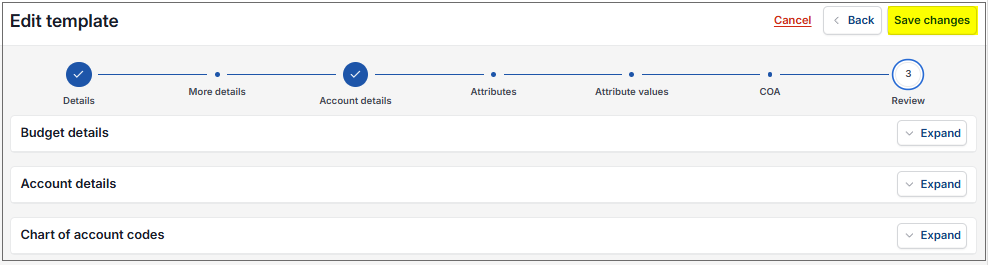
Select Save changes.
How to view Audit Logs
Viewing Audit Logs
Select Budgeting templates from one of the options as shown above in Viewing Budgeting templates.
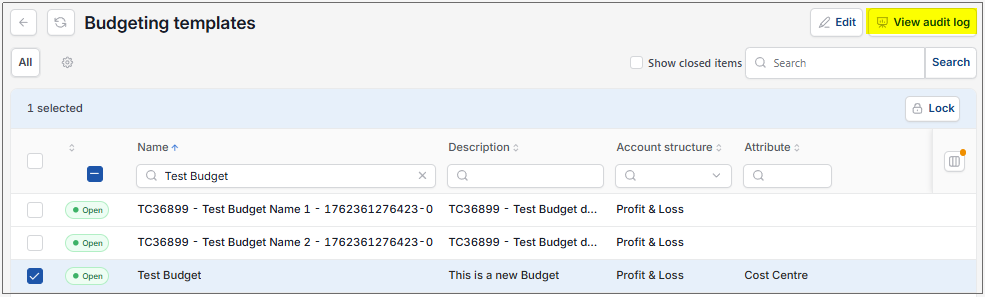
Select an individual Template to view the Audit logs.
Select View audit log.
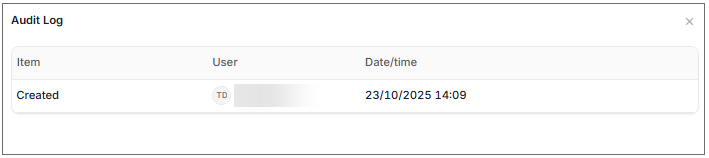
This will then show an Audit log
Updated August 2026